65 — 用 R3F 实现物理
简介
我们已经学过如何给 Three.js 项目添加物理,你可能还记得,那相当繁琐。我们必须把物理世界与 Three.js 世界分开创建,并且对于每个想添加进场景的对象,我们都必须在两个世界里各创建一个版本。
在本课中,我们将看到使用 R3F 后这个过程会变得容易多少。
另外请注意,本课内容相当庞大,可能会有点枯燥,因为我们要涵盖很多概念。但请放心,在下一课中我们会把这些知识运用到一个更有趣的练习中。
从 Cannon 到 Rapier
在之前的 物理 那一课中,我们使用 Cannon.js 来处理物理部分。Cannon 是一个很棒的物理库,但原始代码已经很多年没有更新了。幸运的是,PMNDRS 团队一直在维护一个代码分支,叫做 cannon-es,并且他们也在 R3F 中实现了它(NPM、Github)。
虽然 cannon-es 是一个完全可行的解决方案,但出现了一个新的挑战者,它的名字叫 Rapier。
Rapier
Rapier 创建于 2019 年。它用 Rust 编写,并借助 WebAssembly 在 JavaScript 中运行。
我们不打算过多深入 WebAssembly 的细节,但简而言之,WebAssembly 使得像 C/C++、C# 和 Rust 这样的语言能够以接近原生的性能在网页上运行。
换句话说,Rapier 应该非常高效,而且我们不需要学习任何关于 WebAssembly 或 Rust 的知识。直接用就行。
这个库还具有“确定性”(determinism)。默认情况下,在相同条件下运行模拟会产生相同的动画,即使在不同设备上也是如此(https://rapier.rs/docs/user_guides/javascript/determinism)。
Rapier 由 Dimforge 开发:
而且这个物理库同时适用于 2D 和 3D:
Rapier 并不绑定于 Three.js,我们可以将它用于任何其他库。
React Three Rapier
那 Three.js 呢,更具体地说 R3F 呢?
好消息是,R3F 已经通过 PMNDRS 团队,更确切地说是通过 Hugo Wiledal(@etthugo),把 Rapier 实现为 React Three Rapier。
React Three Rapier 运行得非常出色,但要小心。在我撰写本课时,它仍在开发中,你可能会遇到 bug 和未完成的功能。这些问题应该会随着时间的推移得到解决,而且你在学习本课时甚至可能不会遇到它们。
尽管我们会强制使用一个非常具体的库版本以尽量减少 bug,但仍要留意课程内容与你屏幕上的实际效果之间可能存在的差异。
如果你遇到困难,不要犹豫,在 Three.js Journey 的 Discord 服务器,甚至 PMNDRS 服务器 上寻求帮助。
如何学习
我们将一起学习 R3F 中的 Rapier,但已经有了一些可用的资源,我们将把以下文档作为参考。
Rapier(不涉及 Three.js 也不涉及 R3F)
- 文档:https://rapier.rs/docs/user_guides/javascript/getting_started_js
- API:https://rapier.rs/javascript3d/index.html
至于在 R3F 中学习 Rapier,由于该库仍在开发中,目前还没有完整可用的文档。不过,我们可以访问一些示例:
- Readme:https://github.com/pmndrs/react-three-rapier#readme
- React Three Fiber 上的示例:https://docs.pmnd.rs/react-three-fiber/getting-started/examples(搜索 “rapier”)
无论如何,我们将在本课中学习到我们大部分需要的内容。
准备工作
在起始项目中,我们有经典的橙色球体、紫色立方体和绿色地板:
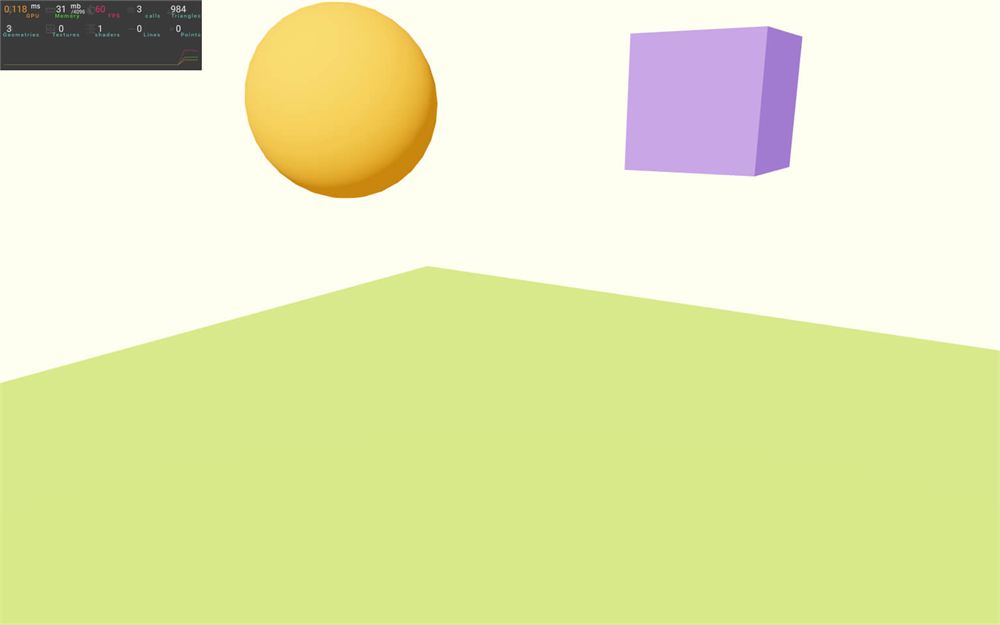
如你所见,球体和立方体比平时稍高一些,仿佛随时准备掉落。
地板也更厚。物理引擎在检测与薄物体的碰撞时表现不太好。
我们还有一盏方向光和一盏环境光。
@react-three/drei 依赖已经安装在项目中,我们使用 OrbitControls 辅助工具来移动相机。
我们还在 r3f-perf 中添加了 <Perf /> 以便时刻关注性能。
实现
要把 React Three Rapier 添加到项目中,请在终端运行 npm install @react-three/rapier@1.4(我们强制指定版本以避免意外;你可以忽略潜在的安全漏洞警告)。
只需对代码做几处修改就能让物理运行起来。这会很快,但我们会在这一部分之后立即深入细节。
<Physics>
首先,在 Experience.jsx 中,我们需要从 @react-three/rapier 导入 Physics:
import { Physics } from '@react-three/rapier'现在我们需要把它添加到 JSX 中。
由于只有在 <Physics> 标签内的对象才会受到物理的影响,我们将把它添加到 3 个 <mesh> 周围:
export default function Experience()
{
    return <>

        {/* ... */}

        <Physics>

            <mesh castShadow position={ [ - 2, 2, 0 ] }>
                {/* ... */}
            </mesh>

            <mesh castShadow position={ [ 2, 2, 0 ] }>
                {/* ... */}
            </mesh>

            <mesh receiveShadow position-y={ - 1.25 }>
                {/* ... */}
            </mesh>

        </Physics>

    </>
}
<RigidBody>
现在,我们需要指定哪些对象将受到物理的影响。为此,我们需要在每个对象周围添加一个 <RigidBody>。
首先,从 @react-three/rapier 导入 RigidBody:
import { RigidBody, Physics } from '@react-three/rapier'现在,我们可以在那些希望受物理影响的对象周围添加 <RigidBody>。
让我们从球体开始:
<Physics>

    <RigidBody>
        <mesh castShadow position={ [ - 2, 2, 0 ] }>
            <sphereGeometry />
            <meshStandardMaterial color="orange" />
        </mesh>
    </RigidBody>

    {/* ... */}

</Physics>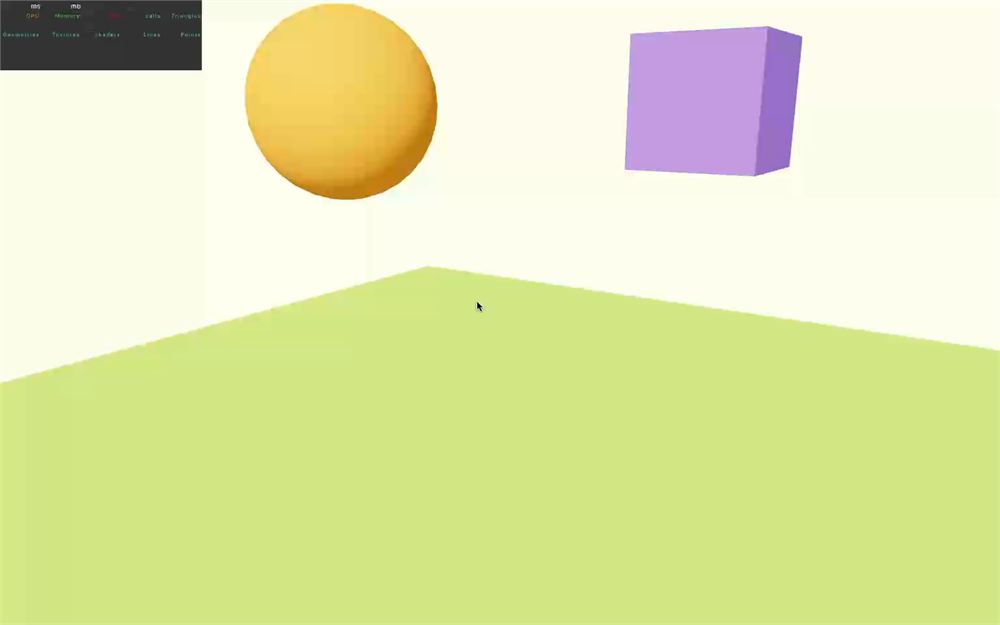
然后,瞧,球体掉下来了。
但显然,它直接穿过了地板,因为我们没有给地板添加物理。
让我们修复这一点,在地板周围添加一个 <RigidBody>,但我们还要添加一个 type 属性,并给它附上 fixed 值:
<Physics>

    {/* ... */}

    <RigidBody type="fixed">
        <mesh receiveShadow position-y={ - 1.25 }>
            <boxGeometry args={ [ 10, 0.5, 10 ] } />
            <meshStandardMaterial color="greenyellow" />
        </mesh>
    </RigidBody>

</Physics>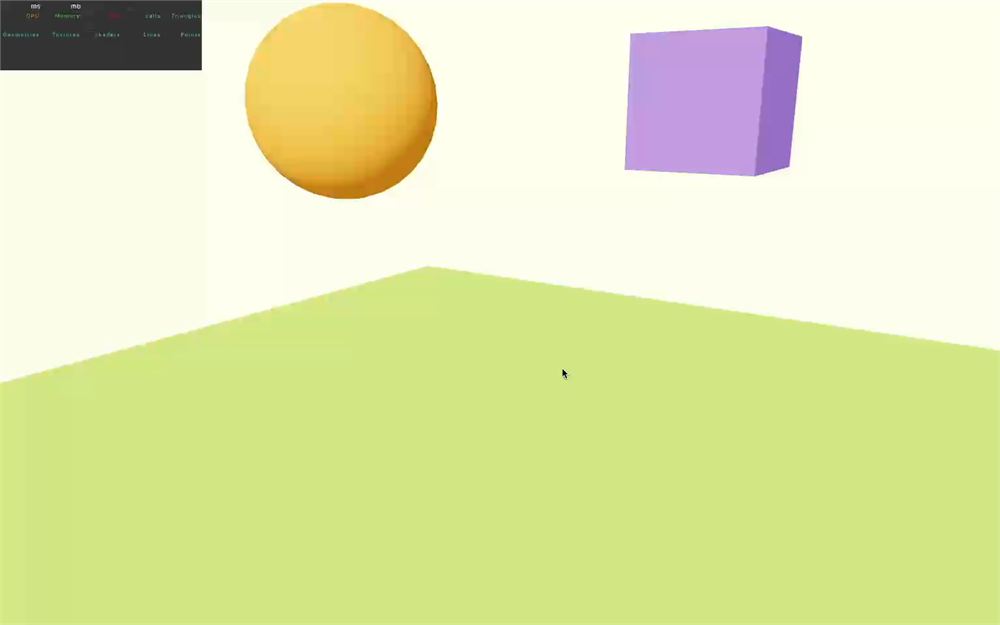
注意,<RigidBody> 只能添加在 <Physics> 元素内部。否则会导致错误。
底层原理
如你所见,添加物理真的很容易。
有几点需要注意:
- 我们不必在每一帧更新物理。
- Three.js 对象会自动与包围它们的对应
RigidBody关联。 - React Three Rapier 会创建一个看起来与 Three.js 对象匹配的物理形状。
- 我们不必指定诸如表面属性、物体质量、重力等东西。
从现在开始,你在做出更改后可能需要重新加载页面。实时更新物理世界是一项相当复杂的任务,热模块替换(Hot Module Reload)还没有得到完美支持。
调试
为了看清物理世界中真正发生了什么,我们要添加一个调试模式,只需给 <Physics> 添加 debug 属性即可。
<Physics debug>

    {/* ... */}

</Physics>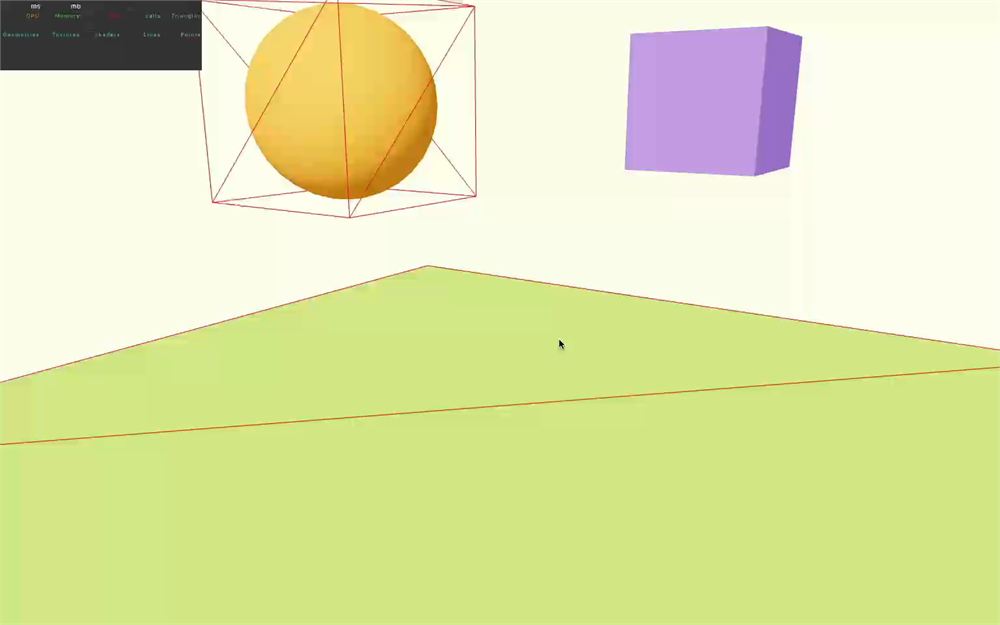
如你所见,我们球体的物理版本实际上是一个方块。别担心,我们会改的。
这个调试模式通常只在开发时使用。你可以在不需要时选择移除它,或者如果你使用像 Leva 这样的调试 UI,可以把它设为可选。
最后,这些线框看起来无害,但它们实际上会对性能产生巨大影响。在本课稍后部分,我们会做一个压力测试并添加数百个物理对象。我们会优化这些对象以便快速渲染,但调试版本不会被优化。
碰撞体
碰撞体(colliders)是构成我们 RigidBodies 的形状。就我们的球体而言,你可以看到碰撞体似乎是一个方块。实际上它更像一个立方体,因为所有边的尺寸都相同,而 Rapier 对这种形状实际使用的词是 “cuboid”(长方体)。
自动碰撞体
长方体碰撞体
这个长方体是由 React Three Rapier 自动生成的。
让我们在紫色立方体上试试。用 <RigidBody> 包裹立方体 <mesh>:
<RigidBody>
    <mesh castShadow position={ [ 2, 2, 0 ] }>
        <boxGeometry />
        <meshStandardMaterial color="mediumpurple" />
    </mesh>
</RigidBody>
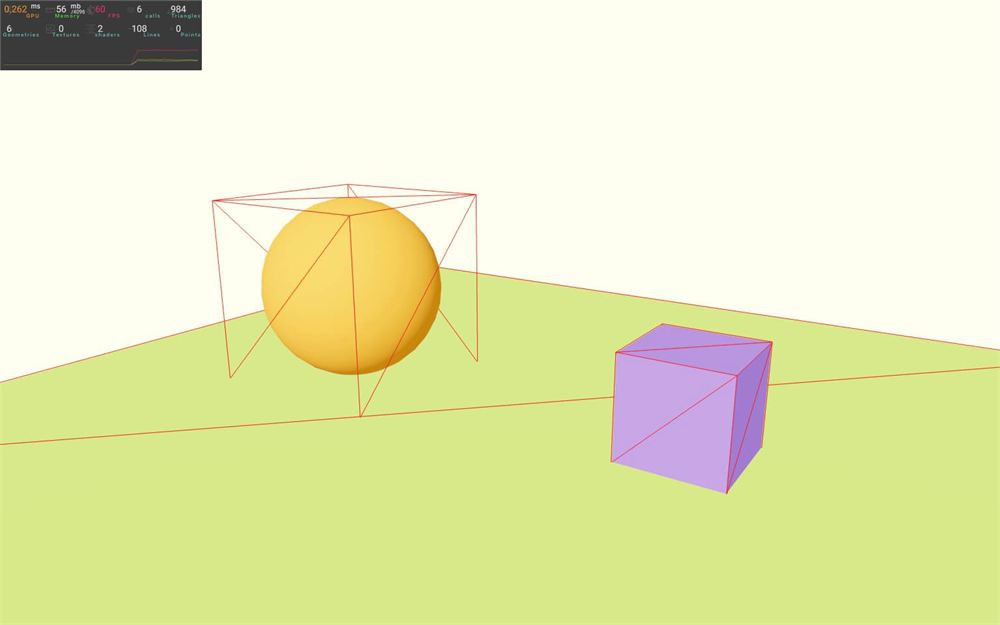
如你所见,这个新的长方体与我们的原始立方体完美匹配。
使用 scale 属性更改 <mesh> 的大小,看看碰撞体是否匹配:
<RigidBody>
    <mesh castShadow position={ [ 2, 2, 0 ] } scale={ 2 }>
        <boxGeometry args={ [ 2, 2, 2 ] } />
        <meshStandardMaterial color="mediumpurple" />
    </mesh>
</RigidBody>
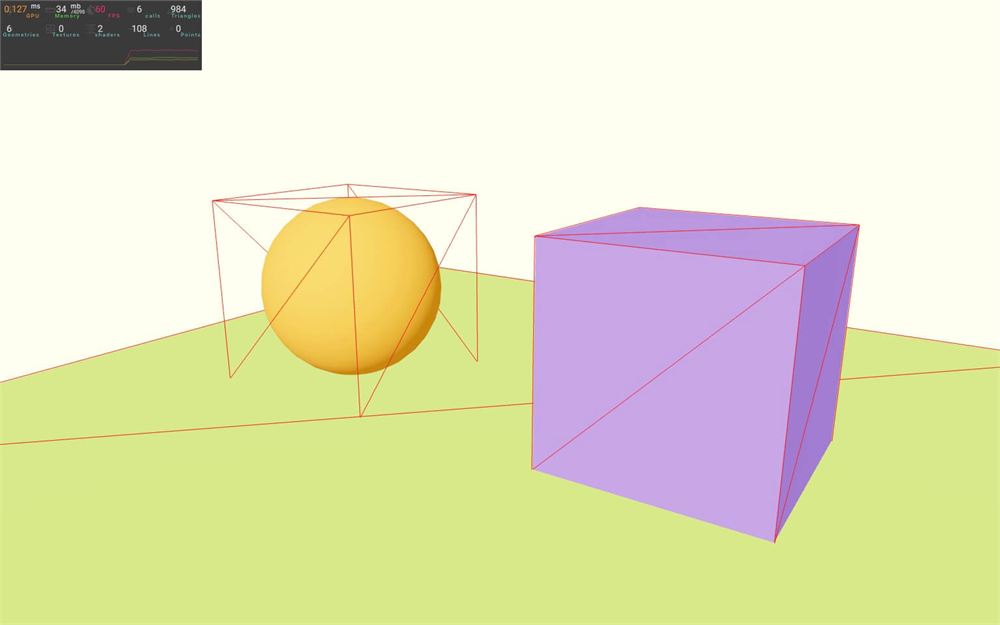
我们甚至可以在 <boxGeometry> 上尝试,而不是更改 <mesh> 上的 scale:
<RigidBody>
    <mesh castShadow position={ [ 2, 2, 0 ] }>
        <boxGeometry args={ [ 2, 2, 2 ] } />
        <meshStandardMaterial color="mediumpurple" />
    </mesh>
</RigidBody>
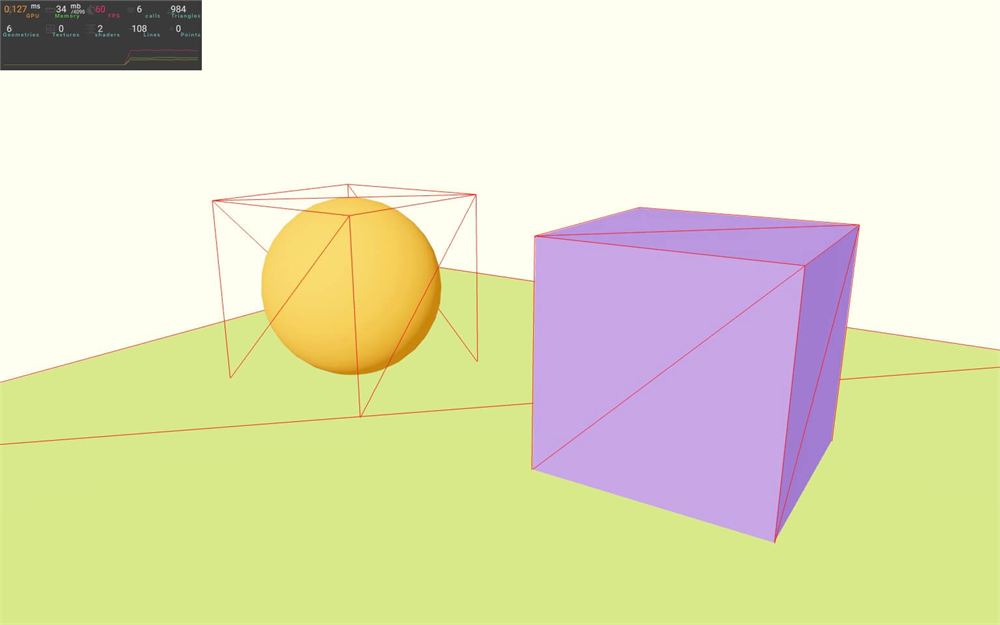
碰撞体似乎总是能适配。
但如果我们发送一个非立方体的形状呢?
<RigidBody>
    <mesh castShadow position={ [ 2, 2, 0 ] }>
        <boxGeometry args={ [ 3, 2, 1 ] } />
        <meshStandardMaterial color="mediumpurple" />
    </mesh>
</RigidBody>
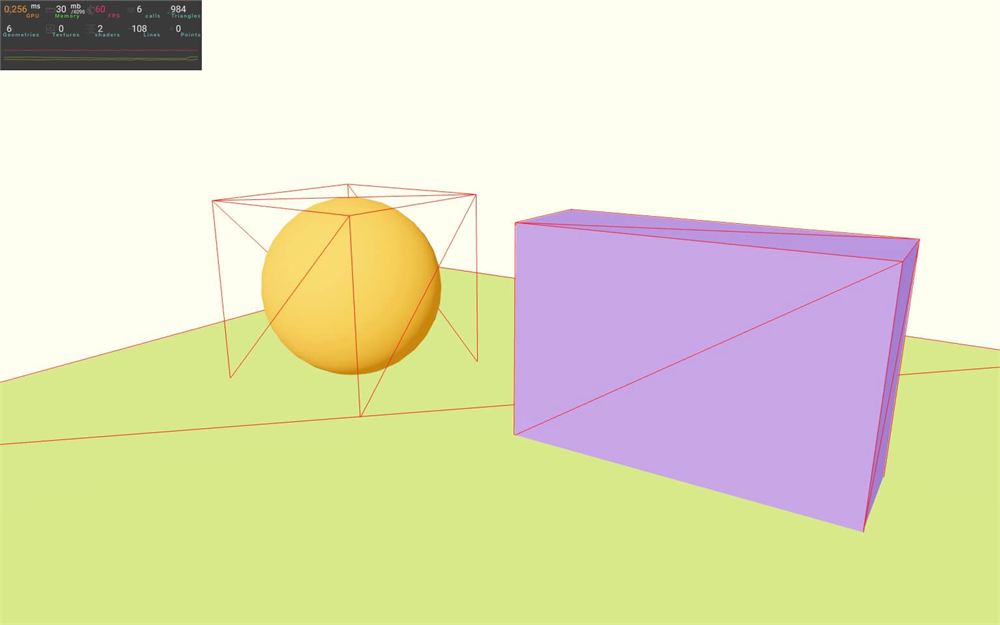
是的,它仍然有效。
组合对象
让我们试着把 React Three Rapier 弄乱,在紫色盒子的 <RigidBody> 里添加第二个 <mesh>:
<RigidBody>
    <mesh castShadow position={ [ 2, 2, 0 ] }>
        <boxGeometry args={ [ 3, 2, 1 ] } />
        <meshStandardMaterial color="mediumpurple" />
    </mesh>
    <mesh castShadow position={ [ 2, 2, 1 ] }>
        <boxGeometry args={ [ 1, 1, 1 ] } />
        <meshStandardMaterial color="mediumpurple" />
    </mesh>
</RigidBody>
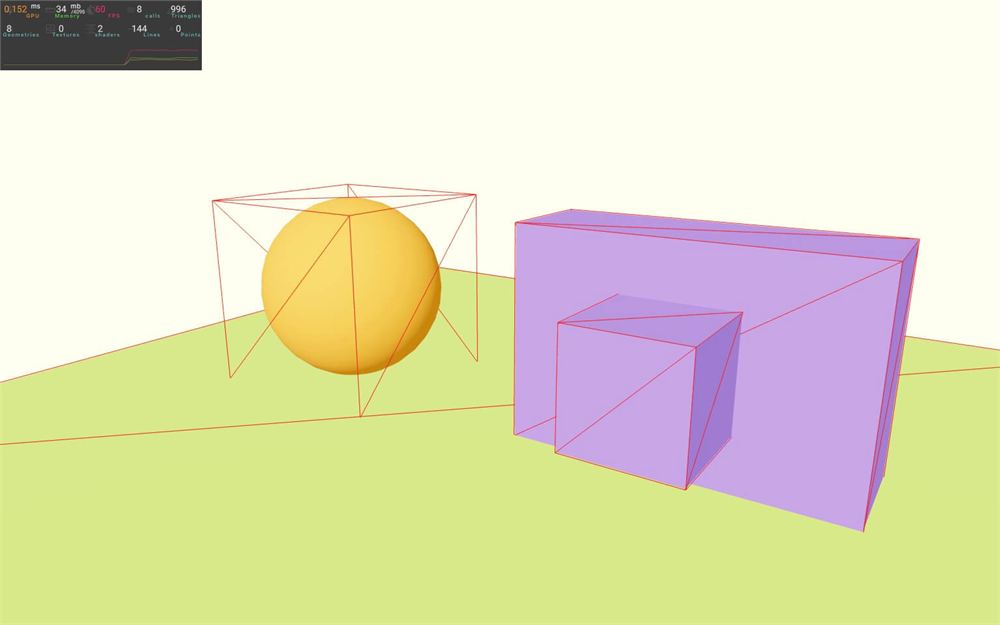
如你所见,React Three Rapier 为第二个 <mesh> 创建了第二个碰撞体。我们仍然只有一个 RigidBody,但它由多个碰撞体组成。
现在试着把这个新的小立方体从最初的盒子移远一点:
<RigidBody>
    <mesh castShadow position={ [ 2, 2, 0 ] }>
        <boxGeometry args={ [ 3, 2, 1 ] } />
        <meshStandardMaterial color="mediumpurple" />
    </mesh>
    <mesh castShadow position={ [ 2, 2, 3 ] }>
        <boxGeometry args={ [ 1, 1, 1 ] } />
        <meshStandardMaterial color="mediumpurple" />
    </mesh>
</RigidBody>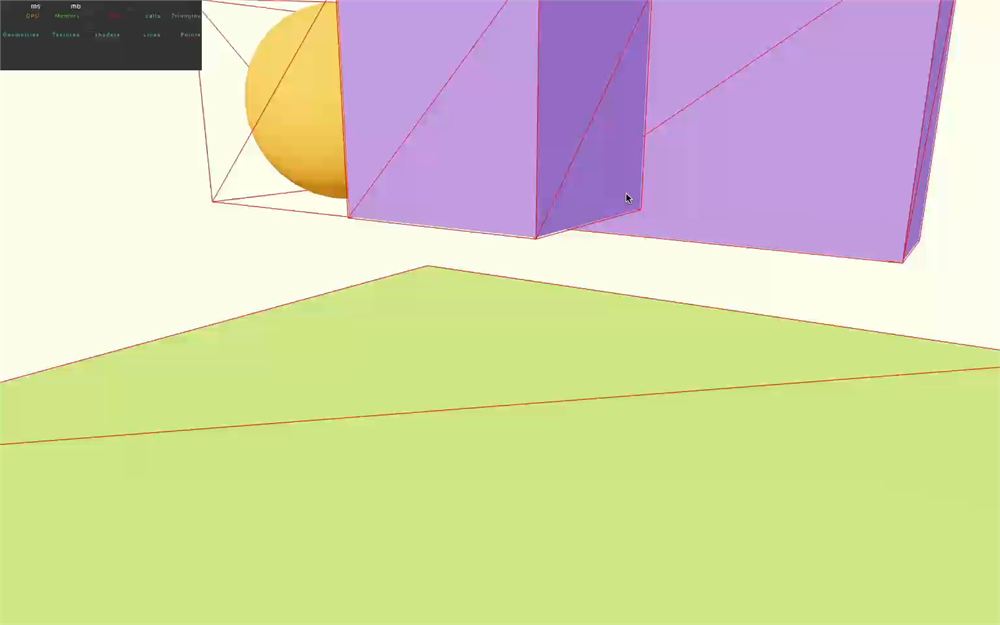
你可以看到,这些碰撞体不需要物理上连接在一起也能作为一个复杂的整体运作。在远离主体的地方增加一些重量还会导致物体侧翻,因为重心发生了变化。就像现实生活中一样。
球体碰撞体
让我们回到球体。
因为默认碰撞体是长方体,它与我们的球体几何体不匹配。
这其实不一定是什么大问题,有时候你并不需要一个精确的碰撞体。人们已经习惯了碰撞体与模型不完全匹配,尤其是玩家。我的作品集(https://bruno-simon.com)中的大多数对象都只有一个仅由盒子组成的物理版本,而且就性能而言,它实际上比精确的形状更好。
尽管如此,让我们试着修复它。
你可以用 colliders 属性决定在 <RigidBody> 中使用哪种自动碰撞体。默认是 cuboid,但我们可以把它设为 ball。
给球体的 <RigidBody> 添加 colliders(带 s)属性,并把它设为 ball:
<RigidBody colliders="ball">
    <mesh castShadow position={ [ - 2, 2, 0 ] }>
        <sphereGeometry />
        <meshStandardMaterial color="orange" />
    </mesh>
</RigidBody>
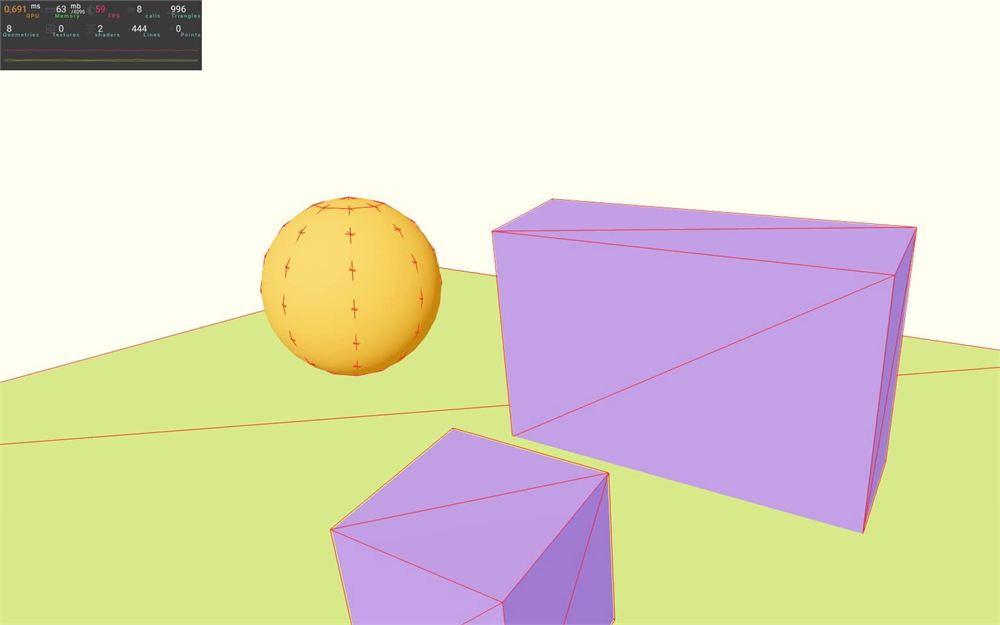
而从调试版本可以看到,我们现在有一个与球体非常贴合的物理形状。
凸包碰撞体
首先,移除立方体的 <RigidBody> 以及里面的内容。
让我们把事情弄得稍微复杂一点。现在正是你亲自尝试遵循指令的好机会:
添加一个带物理的圆环(torus,或甜甜圈)。把这个圆环放在场景中央、平放在地板上,并让球从正上方落到圆环上。
让我们一起做。
首先,创建一个里面装着圆环的 <RigidBody>(你可以在 Three.js 文档 中找到 Torus 几何体的参数):
<RigidBody>
    <mesh castShadow position={ [ 0, 1, 0 ] }>
        <torusGeometry args={ [ 1, 0.5, 16, 32 ] } />
        <meshStandardMaterial color="mediumpurple" />
    </mesh>
</RigidBody>
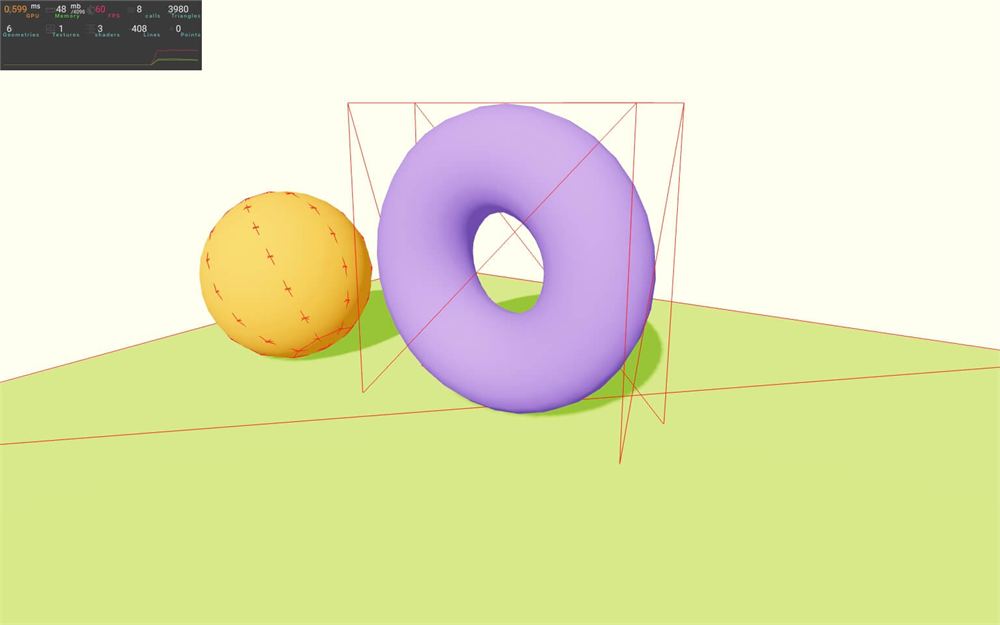
旋转 <mesh>:
<RigidBody>
    <mesh castShadow position={ [ 0, 1, 0 ] } rotation={ [ Math.PI * 0.5, 0, 0 ] }>
        <torusGeometry args={ [ 1, 0.5, 16, 32 ] } />
        <meshStandardMaterial color="mediumpurple" />
    </mesh>
</RigidBody>
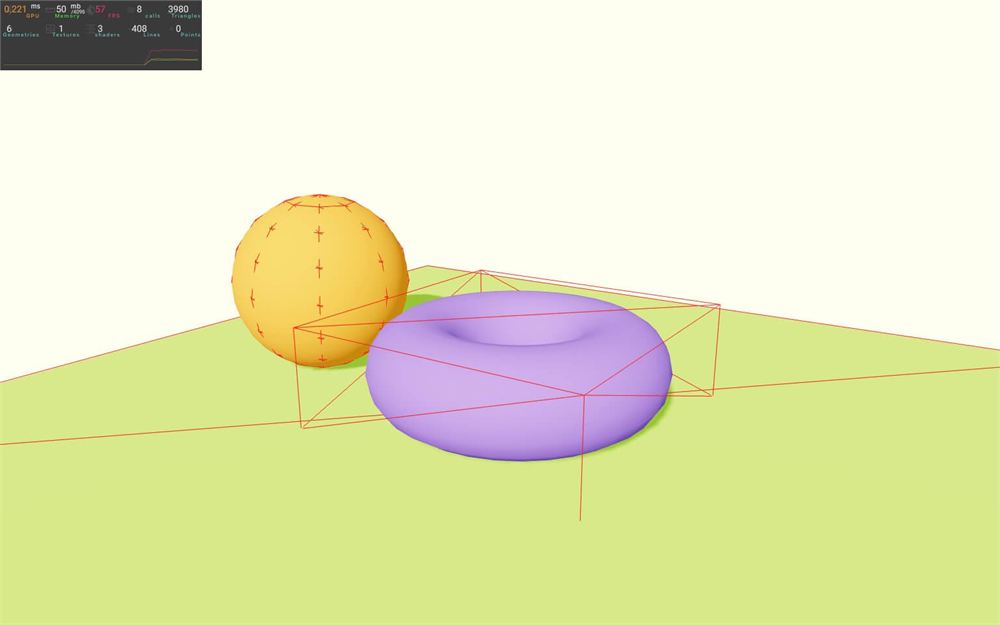
与其转半圈,不如减小角度并把圆环移向背景。这样我们就可以测试圆环是否逼真地掉落。结果是,球应该正好落在它上面:
<RigidBody>
    <mesh castShadow position={ [ 0, 1, - 0.25 ] } rotation={ [ Math.PI * 0.1, 0, 0 ] }>
        <torusGeometry args={ [ 1, 0.5, 16, 32 ] } />
        <meshStandardMaterial color="mediumpurple" />
    </mesh>
</RigidBody>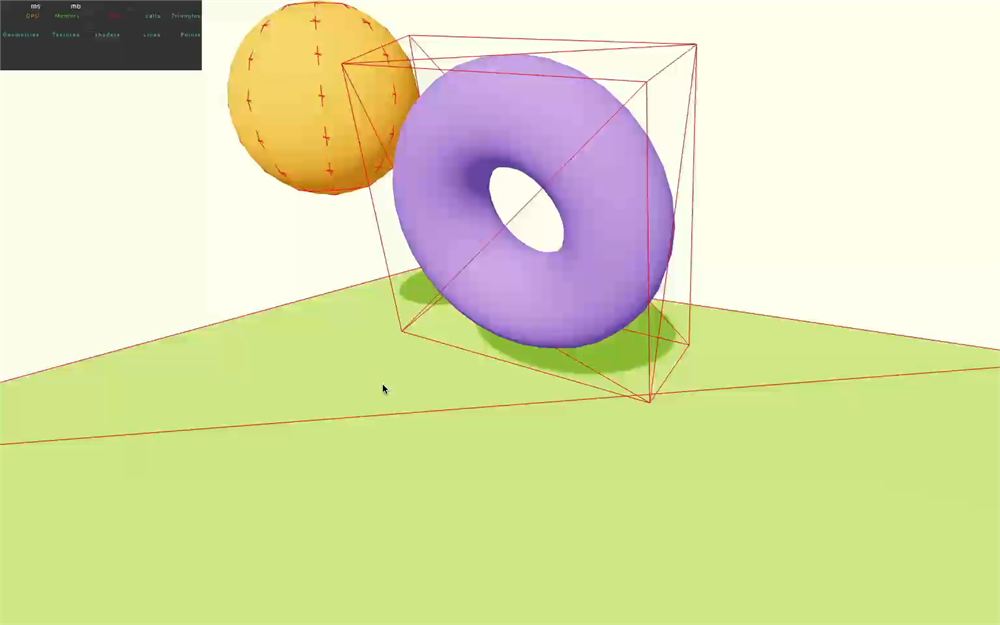
现在,让我们更改球的 position 把它放到圆环上方:
<RigidBody colliders="ball">
    <mesh castShadow position={ [ 0, 4, 0 ] }>
        <sphereGeometry />
        <meshStandardMaterial color="orange" />
    </mesh>
</RigidBody>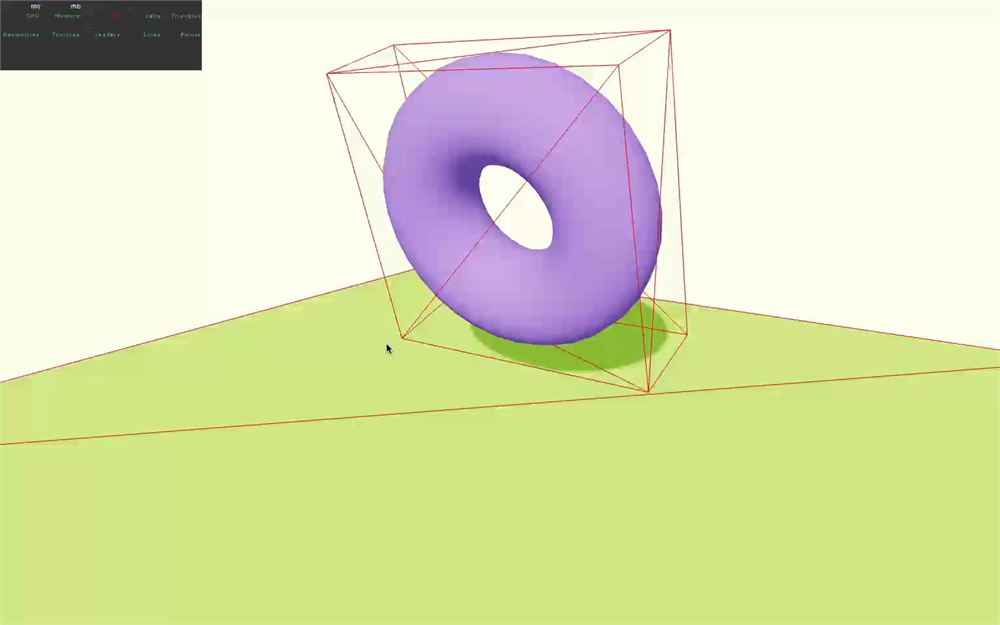
我们准备好了。如你所见,这里的主要问题是圆环的碰撞体是一个长方体,它阻止了圆环掉落。
让我们改用 ball 试试:
<RigidBody colliders="ball">
    <mesh castShadow position={ [ 0, 1, - 0.25 ] } rotation={ [ Math.PI * 0.1, 0, 0 ] }>
        <torusGeometry args={ [ 1, 0.5, 16, 32 ] } />
        <meshStandardMaterial color="mediumpurple" />
    </mesh>
</RigidBody>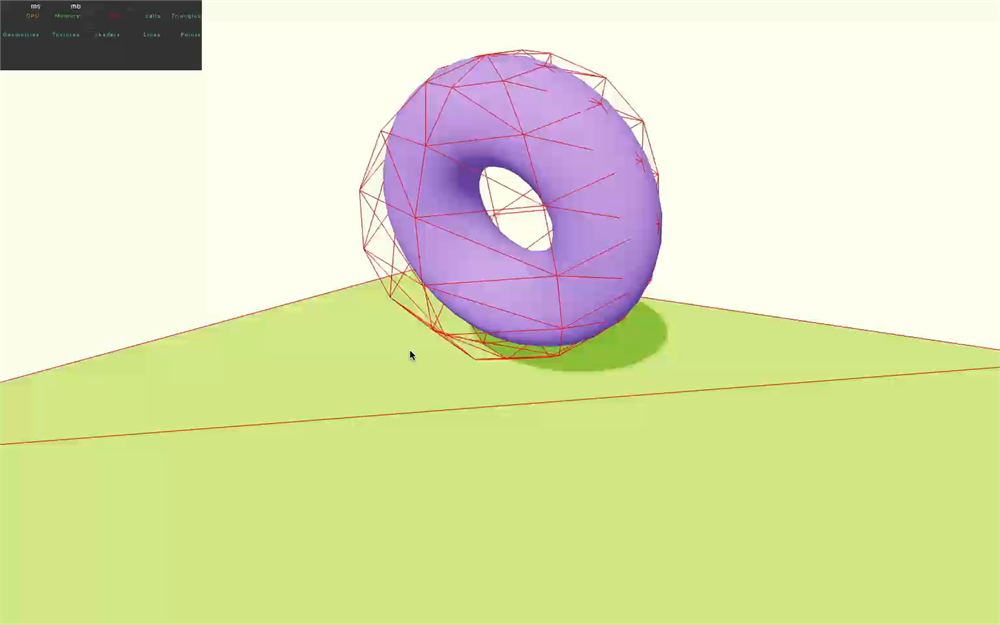
不太令人信服。
圆环的形状太特殊了,我们需要一个自定义碰撞体。
而凸包(hull)碰撞体就在这时派上用场。
把 colliders 属性的值替换为 "hull":
<RigidBody colliders="hull">
    <mesh castShadow position={ [ 0, 1, - 0.25 ] } rotation={ [ Math.PI * 0.1, 0, 0 ] }>
        <torusGeometry args={ [ 1, 0.5, 16, 32 ] } />
        <meshStandardMaterial color="mediumpurple" />
    </mesh>
</RigidBody>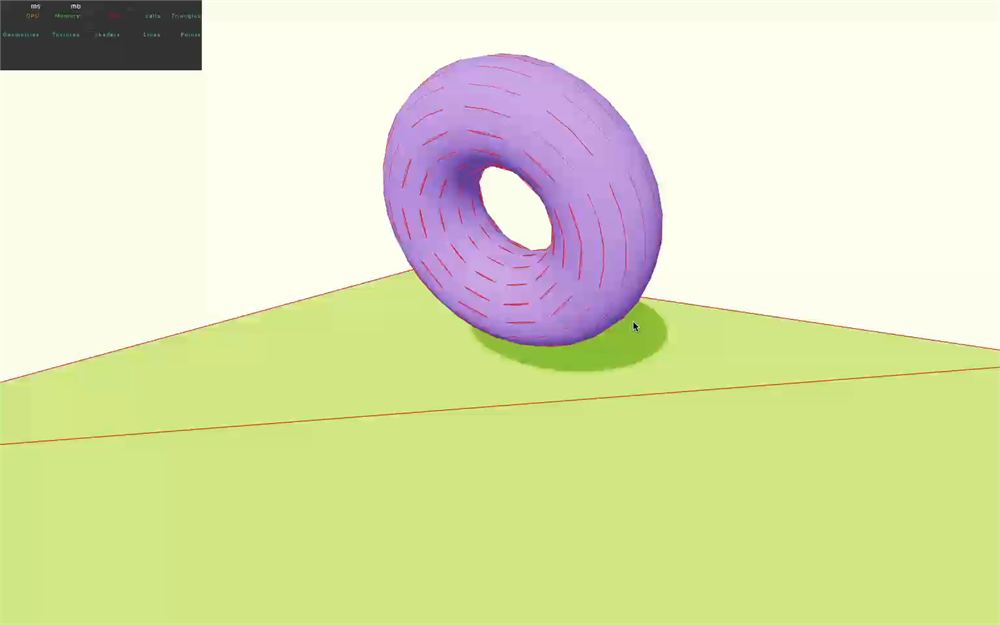
现在,物体掉落的方式看起来更符合物理规律了。
凸包其实应该叫做“凸包”(convex hull)。想象你在物体周围包上一层弹性膜。它非常贴合物体形状,但形状中的孔洞会被忽略。
这也正是球不会落进圆环孔洞里的原因。
顺便说一句,不要被你能看到的调试形状迷惑。它是用来创建凸包的基础几何体,而不是实际的凸包几何体。
创建凸包几乎不花时间,它们的运作方式与其他形状一样。另外要注意,它们的性能不如长方体或球体。
trimesh 碰撞体
但如果我们真的想让球落进圆环的孔洞里呢?就像篮球架的篮筐那样。
在这种情况下,一个好的解决方案是使用三角网格(triangle mesh,在 React Three Rapier 中即 trimesh)。
把 colliders 属性改为 "trimesh":
<RigidBody colliders="trimesh">
    <mesh castShadow position={ [ 0, 1, - 0.25 ] } rotation={ [ Math.PI * 0.1, 0, 0 ] }>
        <torusGeometry args={ [ 1, 0.5, 16, 32 ] } />
        <meshStandardMaterial color="mediumpurple" />
    </mesh>
</RigidBody>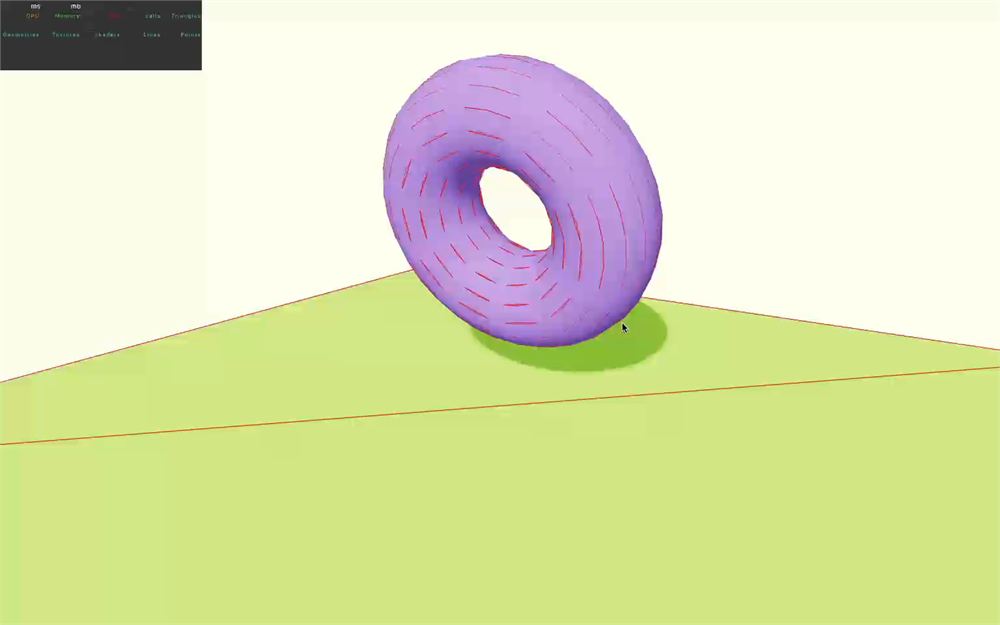
现在球正好落进了孔洞里。
那么为什么我们不直接使用 trimesh 呢?
嗯,有一个陷阱。你应该避免在动态 RigidBodies 上使用 trimesh(动态对象就是像球和圆环那样会掉落的对象)。
原因,正如 Rapier 文档 中所解释的,用 trimesh 生成的碰撞体内部是空的,这会让碰撞检测变得更复杂,且容易出错。一个快速移动的物体可能会穿过 trimesh,或者卡在它的表面上。
这并不意味着你不能使用它,但最好把它用在固定的 RigidBodies 上。否则,你就得预期会出现一些 bug。
自定义碰撞体
我们已经看到 React Three Rapier 处理自动碰撞体真的很好,但有时候,我们想要创建自己的碰撞体,甚至是自定义碰撞体的组合。
为了学习,我们将在圆环上创建与几何体形状不匹配的碰撞体。
首先,我们需要告诉 React Three Rapier 不要生成自动碰撞体,方法是在圆环的 <RigidBody> 上把 colliders 属性设为 false:
<RigidBody colliders={ false }>
    <mesh castShadow position={ [ 0, 1, - 0.25 ] } rotation={ [ Math.PI * 0.1, 0, 0 ] }>
        <torusGeometry args={ [ 1, 0.5, 16, 32 ] } />
        <meshStandardMaterial color="mediumpurple" />
    </mesh>
</RigidBody>
球应该会穿过圆环。
下面,我们要列出可用的碰撞体。由于 React Three Rapier 实现了 Rapier 的碰撞体,我们可以把 Rapier 文档作为各种参数的参考:
BallColliderhttps://rapier.rs/javascript3d/classes/Ball.htmlCuboidColliderhttps://rapier.rs/javascript3d/classes/Cuboid.htmlRoundCuboidColliderhttps://rapier.rs/javascript3d/classes/RoundCuboid.htmlCapsuleColliderhttps://rapier.rs/javascript3d/classes/Capsule.htmlConeColliderhttps://rapier.rs/javascript3d/classes/Cone.htmlCylinderColliderhttps://rapier.rs/javascript3d/classes/Cylinder.htmlConvexHullColliderhttps://rapier.rs/javascript3d/classes/ConvexPolyhedron.htmlTrimeshColliderhttps://rapier.rs/javascript3d/classes/TriMesh.htmlHeightfieldColliderhttps://rapier.rs/javascript3d/classes/Heightfield.html
CuboidCollider
让我们试一个我们已经熟悉的。
首先,从 @react-three/rapier 导入 CuboidCollider:
import { CuboidCollider, RigidBody, Physics } from '@react-three/rapier'然后,把它添加到圆环的 <RigidBody> 中,并带上以下参数(我们可以把它添加到 <RigidBody> 中的任何位置):
<RigidBody colliders={ false }>
    <CuboidCollider args={ [ 1, 1, 1 ] } />
    {/* ... */}
</RigidBody>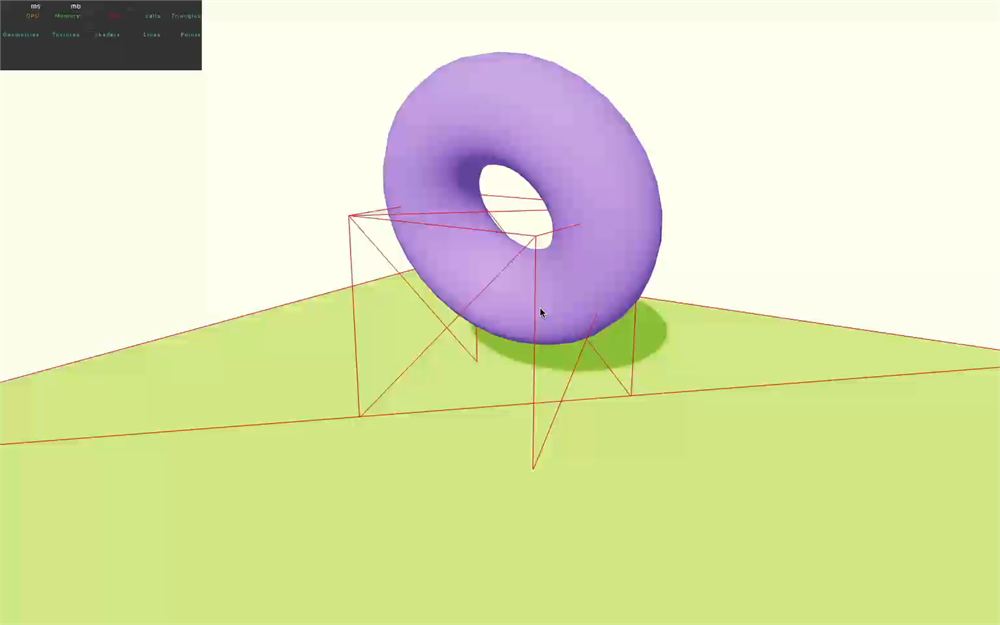
我们得到了长方体,但它远非完美。
首先,我们把 args 设为了 [ 1, 1, 1 ]。这些值就是我们所说的半宽(half extent),我们可以在 Cuboid 类文档的 constructor 部分找到这些参数:https://rapier.rs/javascript3d/classes/Cuboid.html#constructor
半宽就是宽度的一半(x 轴)、高度的一半(y 轴)和深度的一半(z 轴)。
你可以试着稍微改变它们,以大致匹配圆环的形状:
<CuboidCollider args={ [ 1.5, 1.5, 0.5 ] } />
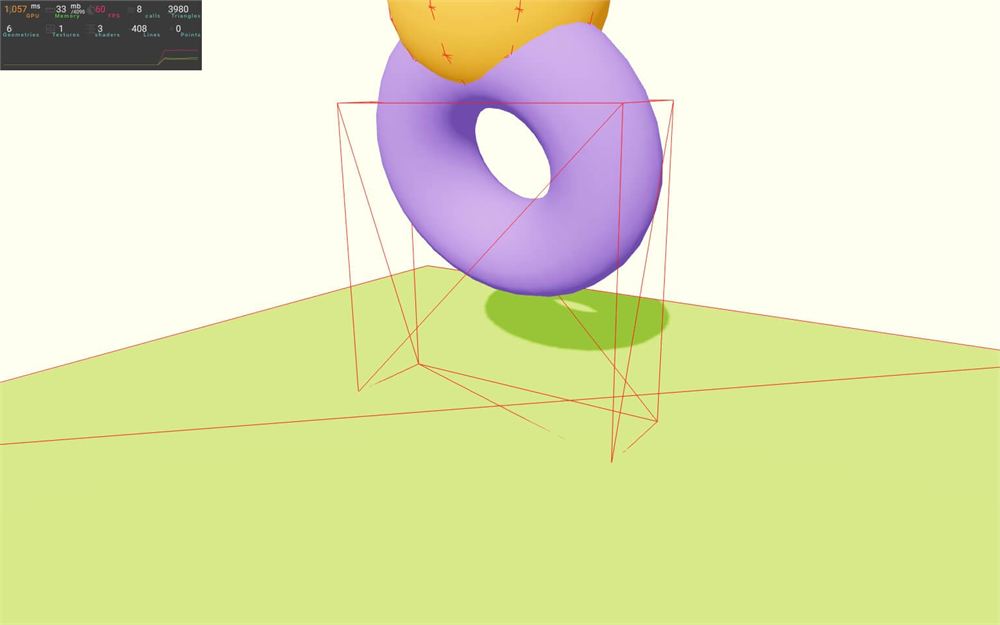
但如你所见,碰撞体没有定位在圆环上,更糟的是,圆环旋转了,而碰撞体没有。
对此有一个快速的修复方法。与其在 <mesh> 上设置 position 和 rotation,我们可以在 <RigidBody> 上设置它们:
<RigidBody colliders={ false } position={ [ 0, 1, - 0.25 ] } rotation={ [ Math.PI * 0.1, 0, 0 ] }>
    <CuboidCollider args={ [ 1.5, 1.5, 0.5 ] } />
    <mesh castShadow>
        {/* ... */}
    </mesh>
</RigidBody>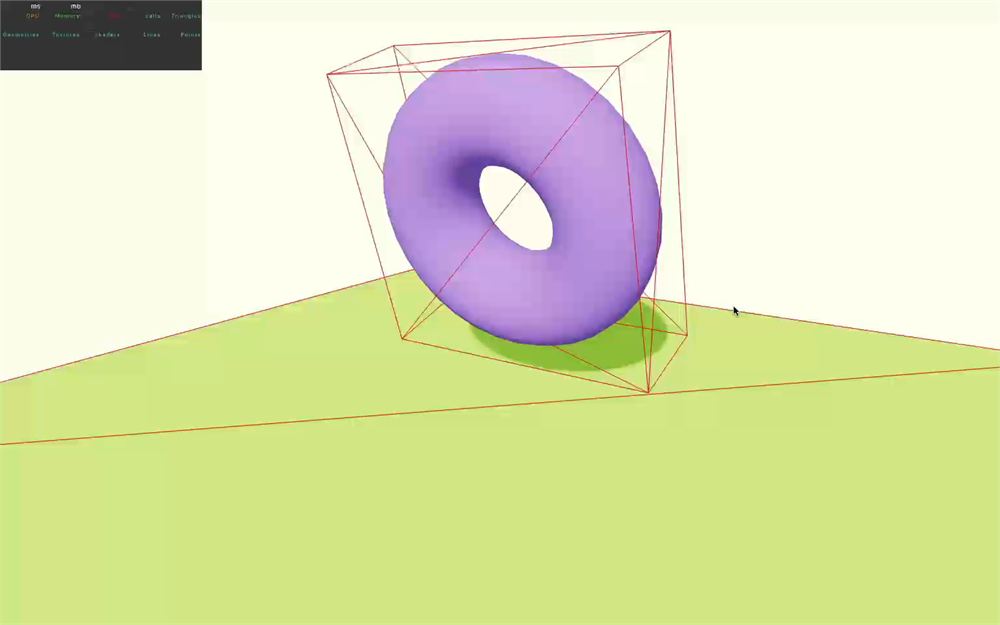
<RigidBody> 和 <mesh> 在位置和旋转方面的运作方式非常相似。
但要小心,scale 是不被支持的。
多个碰撞体
我们仍然可以有多个碰撞体。
再添加一个 <CuboidCollider>:
<RigidBody colliders={ false } position={ [ 0, 1, - 0.25 ] } rotation={ [ Math.PI * 0.1, 0, 0 ] }>
    <CuboidCollider args={ [ 1.5, 1.5, 0.5 ] } />
    <CuboidCollider args={ [ 1, 1, 1 ] } />
    {/* ... */}
</RigidBody>
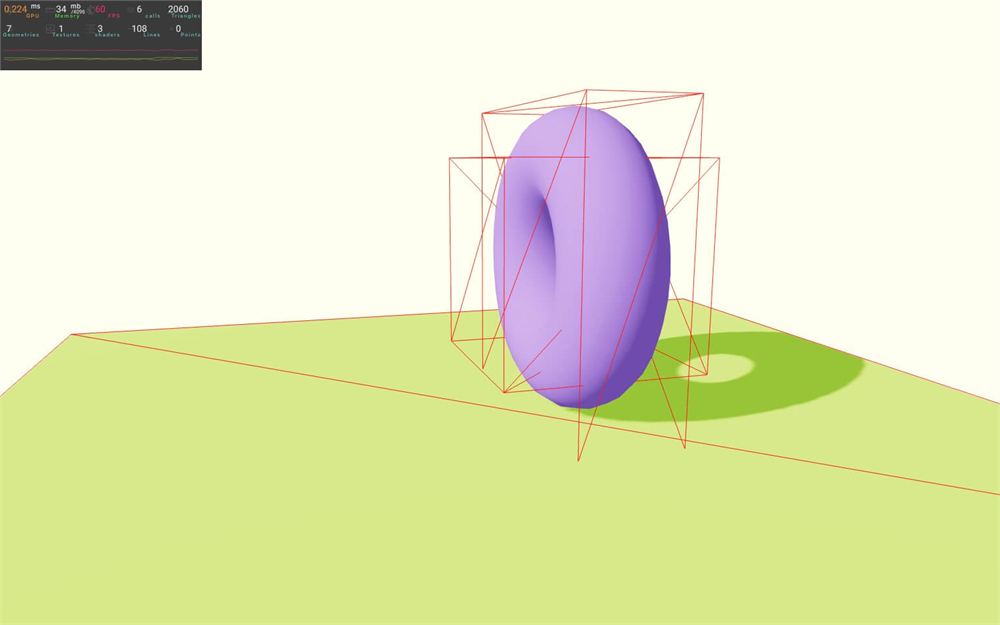
用 position 属性移动新的 <CuboidCollider>,并用 rotation 属性旋转它:
<RigidBody colliders={ false } position={ [ 0, 1, - 0.25 ] } rotation={ [ Math.PI * 0.1, 0, 0 ] }>
    <CuboidCollider args={ [ 1.5, 1.5, 0.5 ] } />
    <CuboidCollider args={ [ 0.25, 1, 0.25 ] } position={ [ 0, 0, 1 ] } rotation={ [ - Math.PI * 0.35, 0, 0 ] } />
    {/* ... */}
</RigidBody>
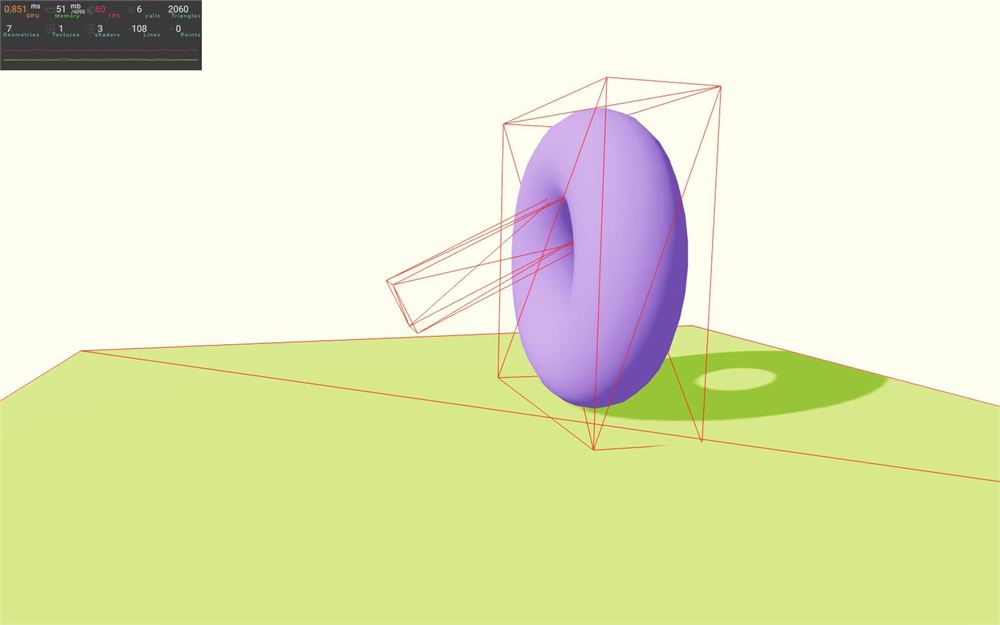
BallCollider
让我们试另一个简单的碰撞体。
从 @react-three/rapier 导入 BallCollider
import { BallCollider, CuboidCollider, RigidBody, Physics } from '@react-three/rapier'用它来替换那两个 <CuboidCollider>:
<RigidBody colliders={ false } position={ [ 0, 1, - 0.25 ] } rotation={ [ Math.PI * 0.1, 0, 0 ] }>
    <BallCollider args={ [ 1.5 ] } />
    {/* ... */}
</RigidBody>
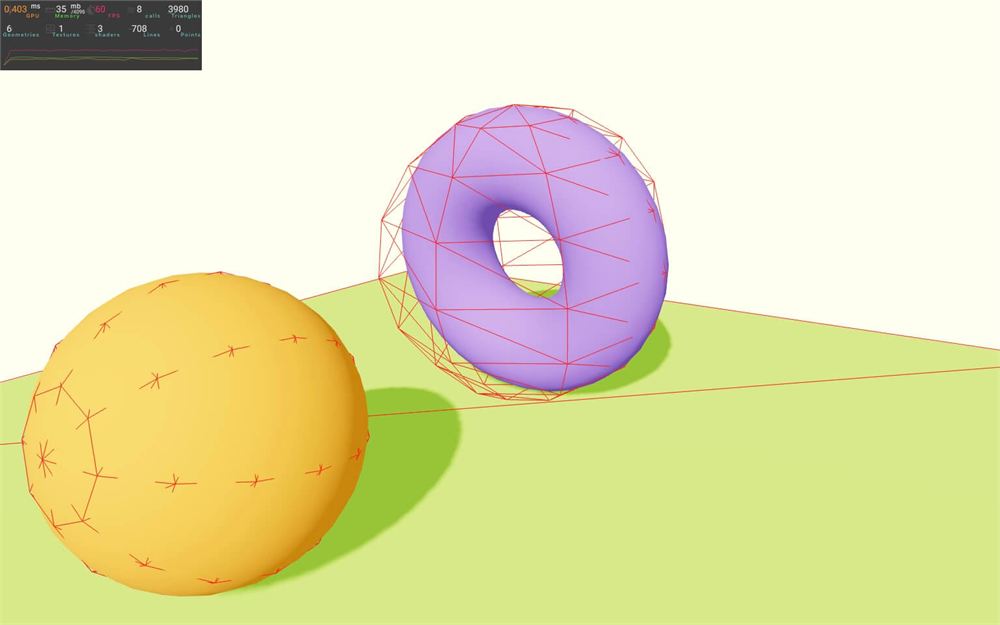
这里没什么意外。唯一的参数是球的半径,正如你可以在 Ball 类的 文档 中读到的那样。
那细分(subdivision)呢?
实际上没有细分,因为 Rapier 是用数学而不是一堆三角形来处理球的。
是的,虽然我们看到的调试版本确实有三角形,但那只是视觉上的表示。
其他碰撞体
我们不打算测试所有其他碰撞体,那会很枯燥,但我们会简单谈一谈它们。
你还可以在 Rapier 文档上找到一个概览,其中解释了一些可用的类:https://rapier.rs/docs/user_guides/bevy_plugin/colliders#overview
如果你愿意,可以随意测试它们。
RoundCuboidCollider
RoundCuboidCollider 就像 CuboidCollider,但边缘是圆角的。
CylinderCollider
CylinderCollider(毫不意外)是一个圆柱体。注意第一个参数,因为它不是高度,而是高度的一半。
CapsuleCollider
CapsuleCollider 有一个非常特殊的形状。你可以把它看作一个顶部和底部都是球体的圆柱体。
参数与 CylinderCollider 相同。
ConeCollider
ConeCollider 就是一个简单的圆锥体。
ConvexHullCollider
ConvexHullCollider 等价于我们之前自动生成的 hull。如果你想自己实例化它,就必须提供顶点,你可以从几何体的 Three.js 顶点中得到。它必须是一个 Float32Array。
TrimeshCollider
TrimeshCollider 等价于我们之前自动生成的 trimesh,它的工作方式与 ConvexHullCollider 类似。
HeightfieldCollider
最后,HeightfieldCollider 可用于创建地形。你需要提供一个包含所有高度值的 Float32Array,并提供列数和行数。Rapier 会根据这些值生成一个网格,你可以用第四个参数对它进行缩放。
它对于生成地形非常有用。
与 trimesh 的区别在于,我们每个顶点只提供一个值:高度。就内存而言它更高效。
注意,这个网格中不能有孔洞,你也无法生成洞穴。
访问刚体并施加力
有时候你会想在刚体上调用特定的指令。比如如果是平台类游戏,你会希望用户按下 Space 键时让玩家跳跃。
举个例子,我们要在点击紫色立方体时让它跳跃。
首先,注释掉或删除圆环及其 <RigidBody>,把最初的立方体放回来并带上自动生成的碰撞体(如果你想练习,可以试着自己写),并把橙色球像之前那样移到左边:
<RigidBody colliders="ball" position={ [ - 1.5, 2, 0 ] }>
    <mesh castShadow>
        <sphereGeometry />
        <meshStandardMaterial color="orange" />
    </mesh>
</RigidBody>

<RigidBody position={ [ 1.5, 2, 0 ] }>
    <mesh castShadow>
        <boxGeometry />
        <meshStandardMaterial color="mediumpurple" />
    </mesh>
</RigidBody>
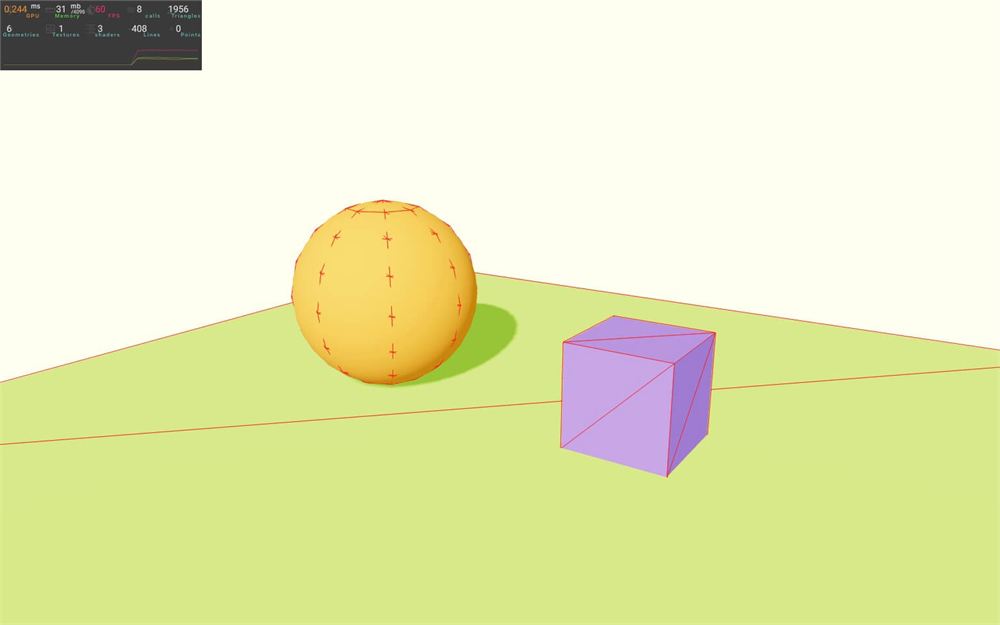
引用与冲量
因为我们想在立方体上施加力,所以需要一个引用。
从 react 导入 useRef:
import { useRef } from 'react'创建一个 cube 引用:
export default function Experience()
{
    const cube = useRef()

    // ...
}
把它添加到立方体的 <RigidBody> 上:
<RigidBody ref={ cube } position={ [ 1.5, 2, 0 ] }>
    {/* ... */}
</RigidBody>
首先,让我们在点击 <mesh> 时触发一个函数。现在正是你亲自尝试的好机会。
在 Experience 中,创建一个 cubeJump 函数:
export default function Experience()
{
    const cube = useRef()

    const cubeJump = () =>
    {
        console.log('jump!')
    }

    // ...
}
把这个函数传给立方体对应的 <mesh> 的 onClick 属性:
<RigidBody ref={ cube } position={ [ 1.5, 2, 0 ] }>
    <mesh castShadow onClick={ cubeJump }>
        {/* ... */}
    </mesh>
</RigidBody>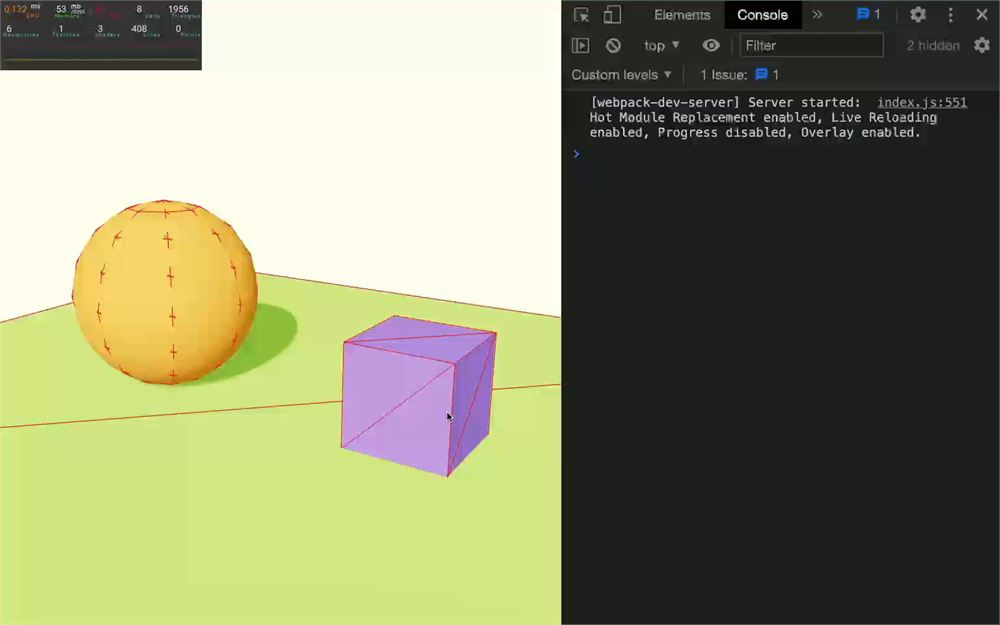
如你所见,我们学过的事件系统仍然有效,我们可以像往常一样在 <mesh> 上监听点击事件。
在 cubeJump 中,打印 cube 引用并点击它:
const cubeJump = () =>
{
    console.log(cube.current)
}
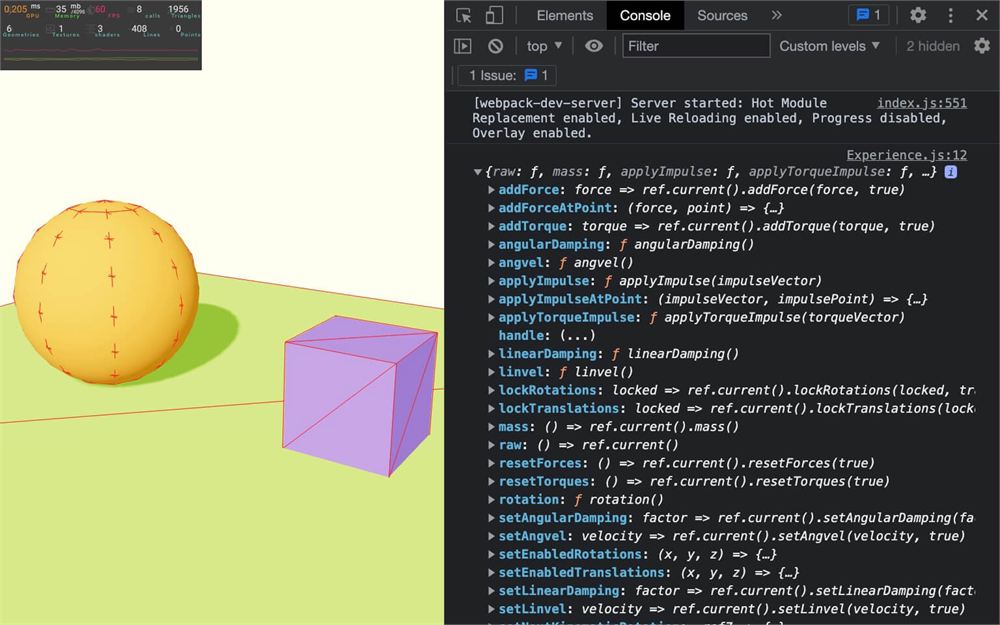
如你所见,这个引用就是 Rapier 中实际的 RigidBody,我们可以使用该类中任何可用的方法:https://rapier.rs/javascript3d/classes/RigidBody.html
你应该暂停一下课程,查看所有可用的方法。如果有些东西看不懂也不用担心。目标是了解一下用 RigidBody 能做些什么。
例如,似乎我们可以施加“力”(force),还有一种叫做“冲量”(impulse)的东西。我们还可以针对这个特定对象调整“重力”。我们可以改变它的“质量”,测试对象是否在移动、是否处于休眠状态,等等。
很好,但让我们回到最初的目标,让那个立方体跳起来。我们可以在 addForce 和 applyImpulse 之间选择。
不深入太多细节的话,addForce 用于施加持续相当长时间的力(比如风),而 applyImpulse 用于在极短时间内施加一个短暂的力(比如用于抛射物)。
要让某个东西跳起来,我们最好使用 applyImpulse。
applyImpulse 需要一个 Vector 3 作为参数,它将是冲量的方向,而它的长度将用作强度。
我们不需要用类来创建 Vector 3,只需创建一个带有 x、y 和 z 属性的对象即可:
在 cubeJump 中,对 cube.current 引用调用 applyImpulse,并向它发送一个向上的向量(正的 y):
const cubeJump = () =>
{
    cube.current.applyImpulse({ x: 0, y: 5, z: 0 })
}
点击立方体看它跳起来:
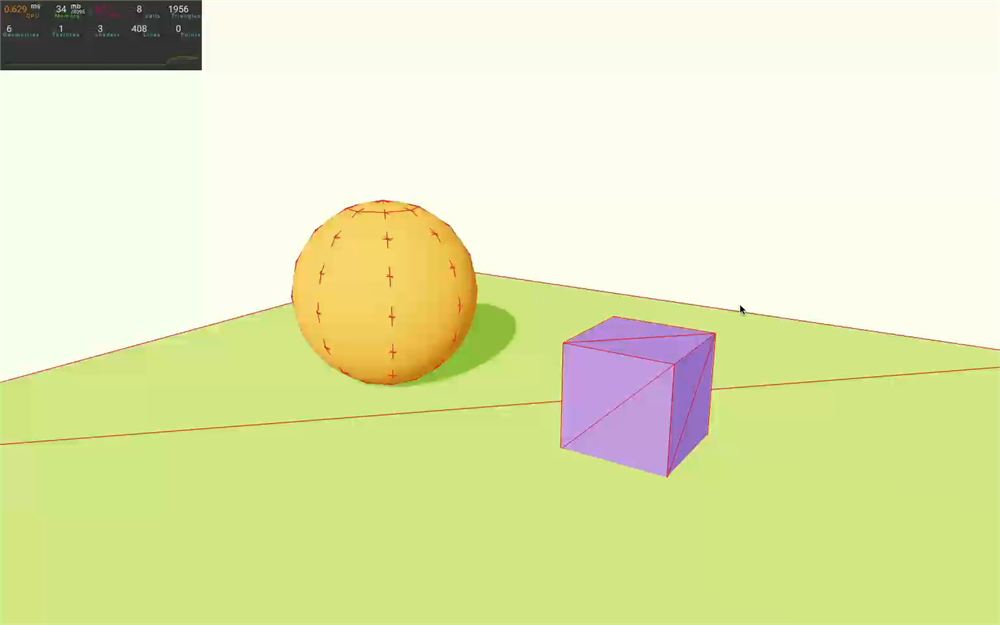
现在让我们看看如何让它旋转。
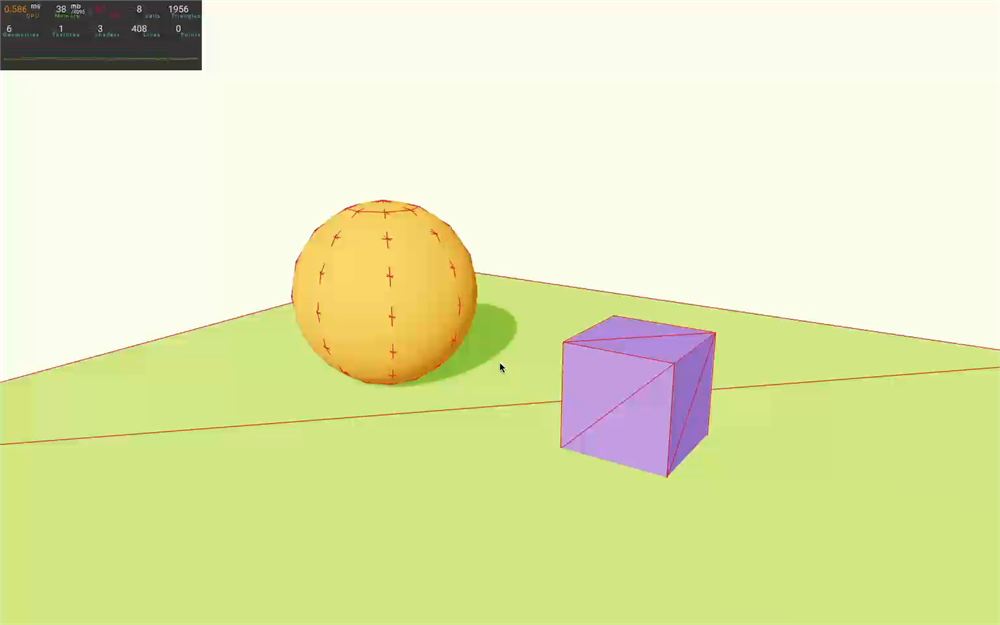
旋转的关键词是 torque(力矩),如果你查看 RigidBody 文档,你会发现有一个 addTorque(相当于 addForce)和一个 applyTorqueImpulse(相当于 applyImpulse)。让我们使用 applyTorqueImpulse。
作为参数,我们需要提供一个 Vector 3,它的作用类似 Euler。如果我们把 x 和 z 设为 0,但把 y 设为除 0 之外的值,立方体就会像旋转木马一样旋转:
const cubeJump = () =>
{
    cube.current.applyImpulse({ x: 0, y: 5, z: 0 })
    cube.current.applyTorqueImpulse({ x: 0, y: 1, z: 0 })
}
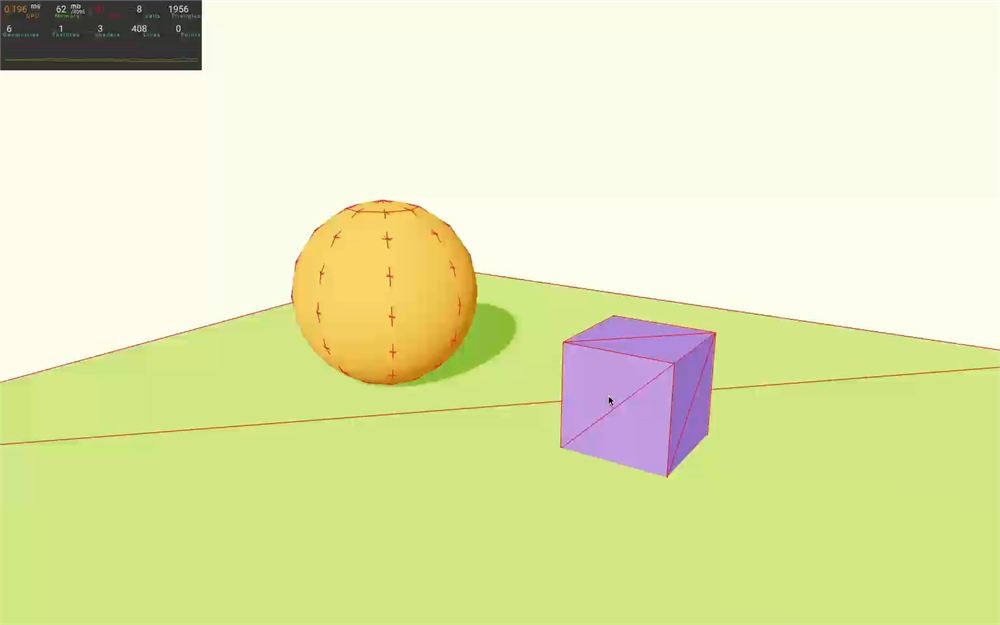
与其做这种规则的旋转,我们可以用 Math.random() 在全部 3 个轴上添加随机性:
const cubeJump = () =>
{
    cube.current.applyImpulse({ x: 0, y: 5, z: 0 })
    cube.current.applyTorqueImpulse({ x: Math.random() - 0.5, y: Math.random() - 0.5, z: Math.random() - 0.5 })
}
让立方体在点击时跳跃是测试我们可以调整的一些属性的绝佳机会。
对象设置
我们有很多方法可以控制对象的行为以及它们之间如何交互。我们可以控制摩擦力、弹性、质量、重力、对象的位置、它们应该去哪,以及更多。
重力
默认情况下,重力被设置为模拟地球重力(接近 -9.81)。我们可以通过向 gravity 属性发送一个包含 3 个值的数组,直接在 <Physics> 上更改它:
<Physics debug gravity={ [ 0, - 1.6, 0 ] }>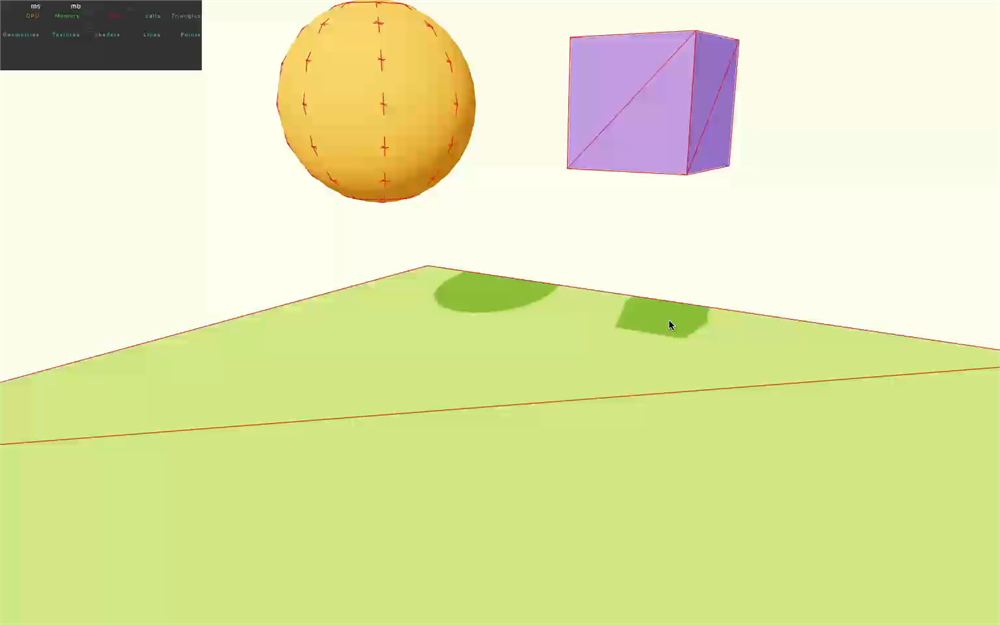
这些设置代表月球上的重力。
如你所见,物体掉落得慢多了,点击立方体会让它跳得高得多。
这 3 个值对应 x、y 和 z。虽然不太常见,但我们也可以反转重力:
<Physics debug gravity={ [ 0, 1.6, 0 ] }>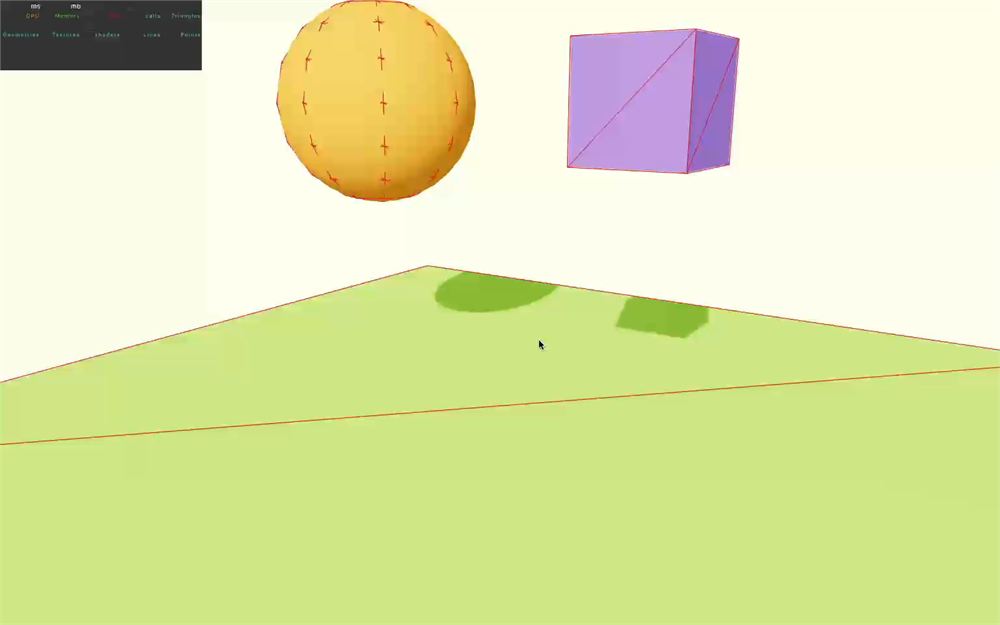
或者朝向侧面:
<Physics debug gravity={ [ - 1.6, 0, 0 ] }>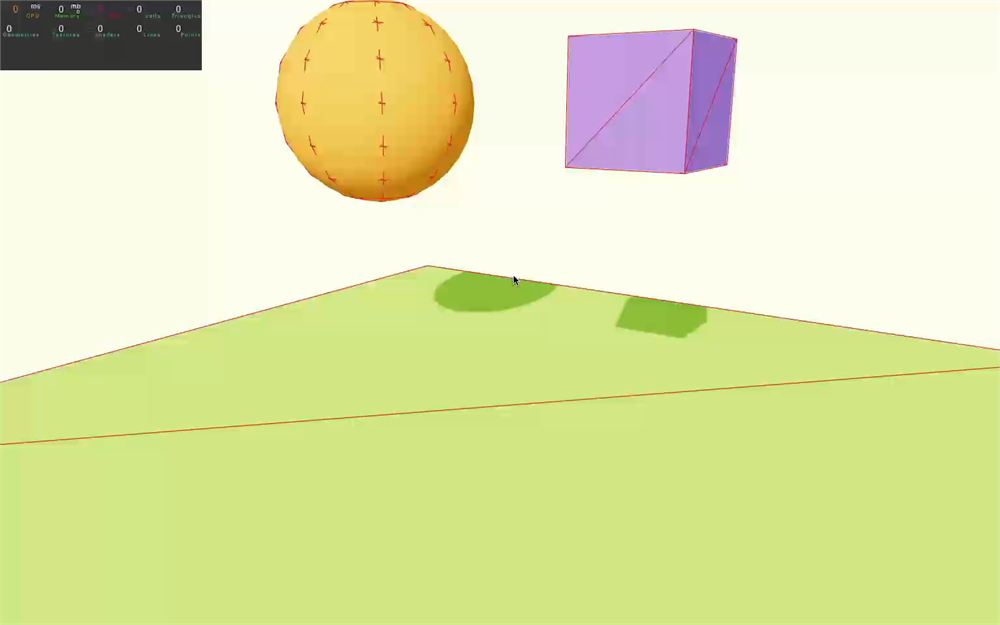
让我们回到地球重力:
<Physics debug gravity={ [ 0, - 9.81, 0 ] }>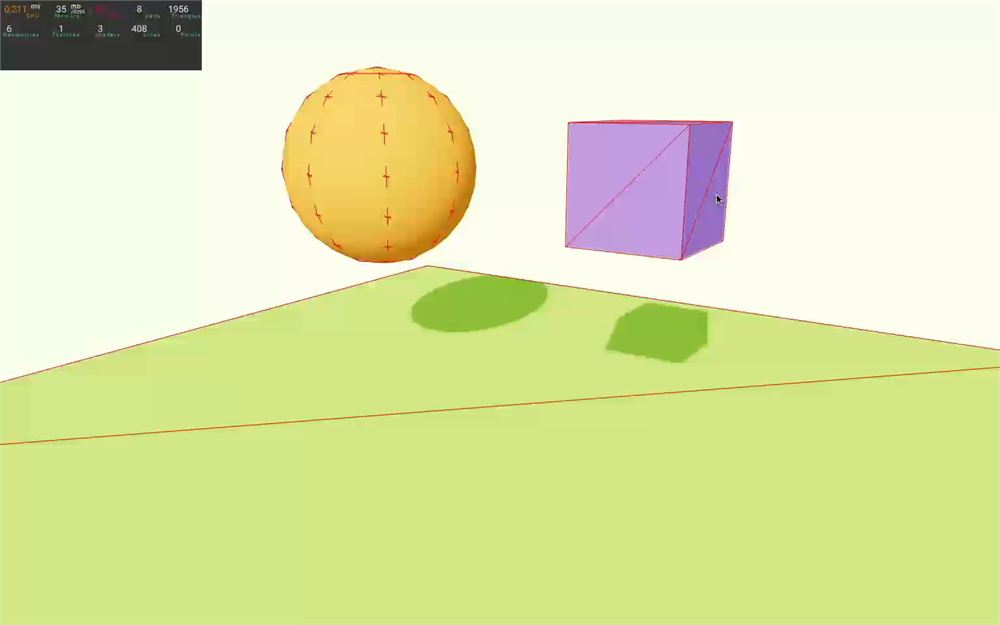
还有一种方法可以为每个对象指定重力缩放。
在立方体的 <RigidBody> 上把 gravityScale 属性设为 0.2:
<RigidBody ref={ cube } position={ [ 1.5, 2, 0 ] } gravityScale={ 0.2 }>
    {/* ... */}
</RigidBody>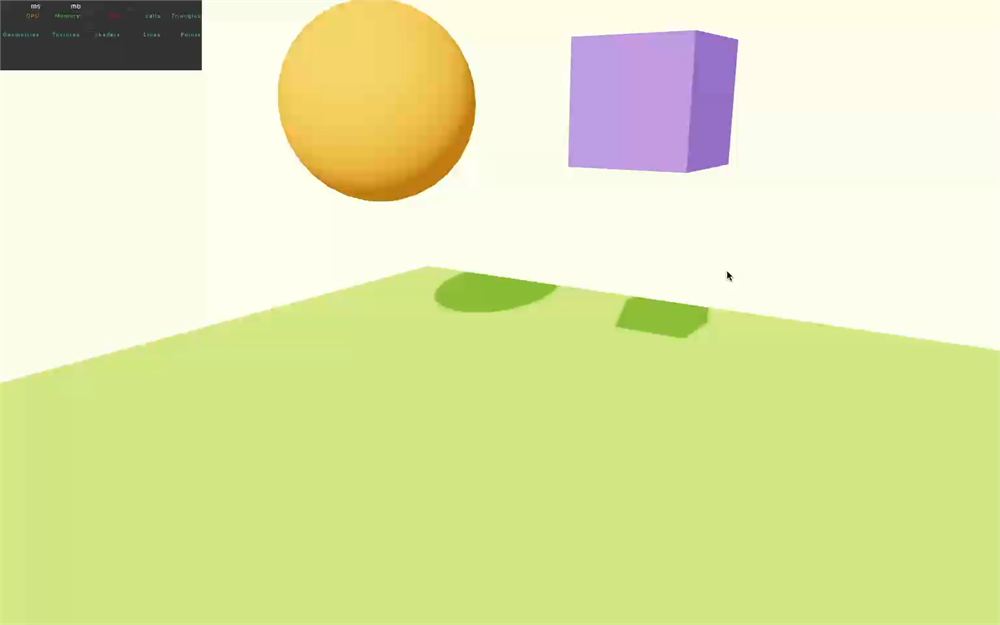
如果你想模拟空气摩擦或氦气球,这会非常有用。
你甚至可以传入一个负值:
<RigidBody ref={ cube } position={ [ 1.5, 2, 0 ] } gravityScale={ - 0.2 }>
    {/* ... */}
</RigidBody>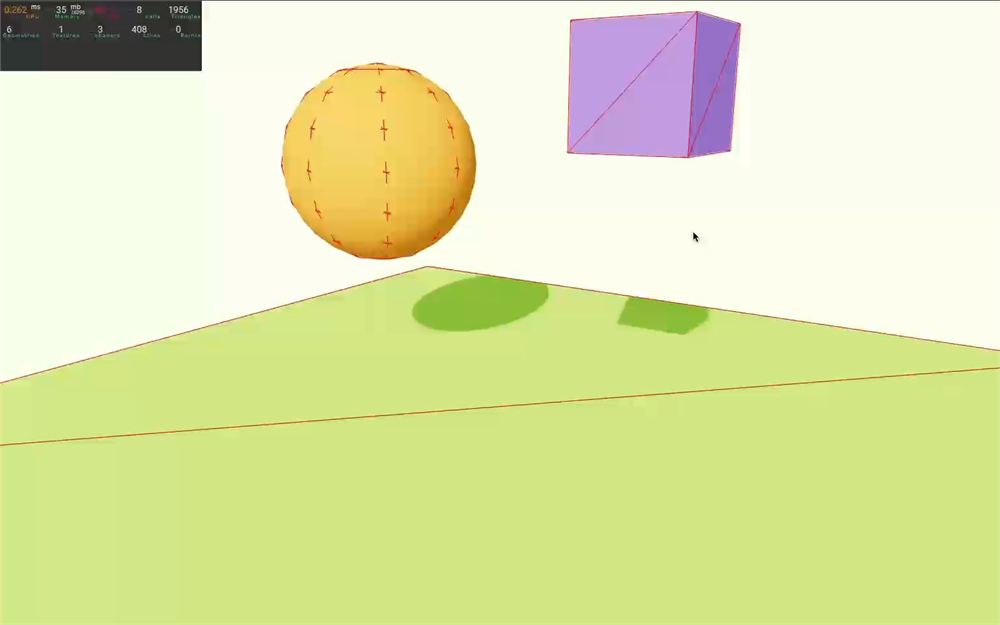
再见了,小立方体。
让我们回到地球:
<RigidBody ref={ cube } position={ [ 1.5, 2, 0 ] } gravityScale={ 1 }>
    {/* ... */}
</RigidBody>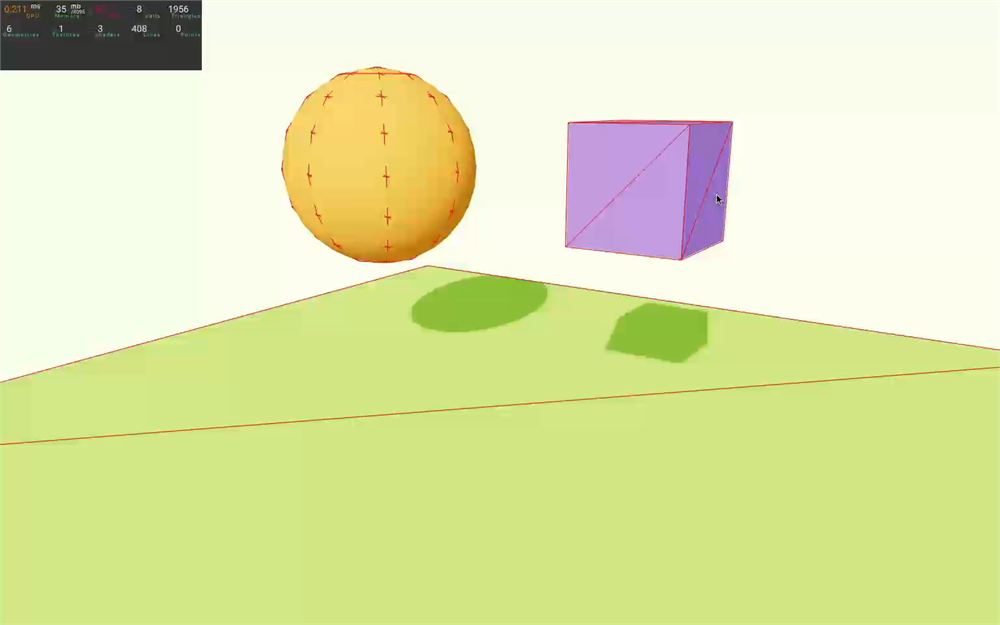
虽然我们不打算测试它,但你也可以在运行时更改重力。
想象一个场景:你在太空船上。突然,你遭到攻击,重力场失效了。你只需调整 <Physics> 上的 gravity 属性,就能让全体船员和物体四处漂浮。
弹性
我们的物体似乎不怎么弹跳,这有点无聊。
我们可以用 restitution 属性控制弹跳度,默认值是 0,意味着它不弹跳。
在立方体的 <RigidBody> 上把 restitution 属性设为 1:
<RigidBody
    ref={ cube }
    position={ [ 1.5, 2, 0 ] }
    gravityScale={ 1 }
    restitution={ 1 }
>
    {/* ... */}
</RigidBody>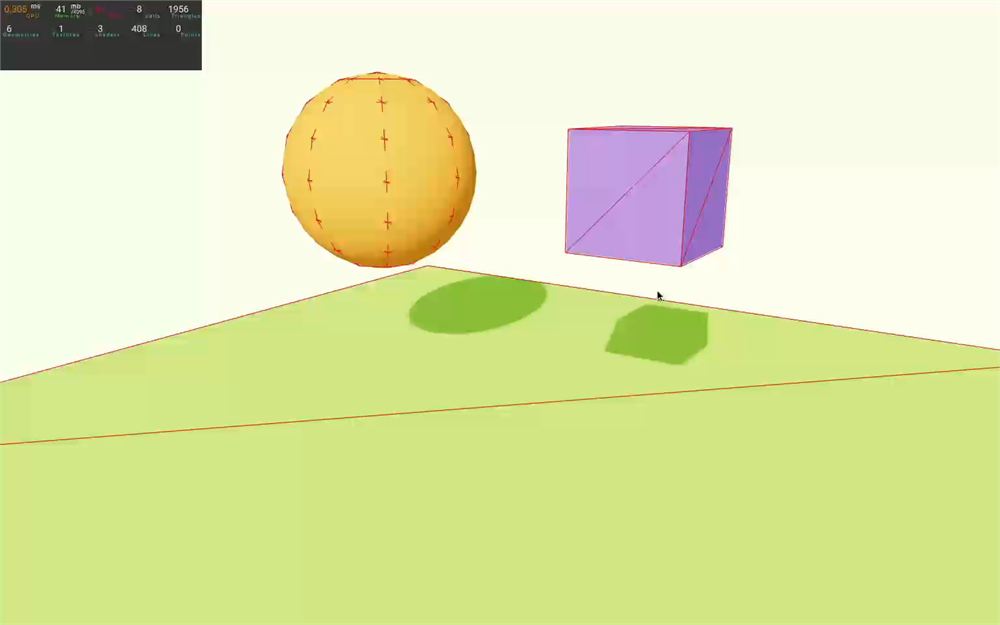
立方体似乎弹得更多了,但弹性为 1 不应该让它弹回初始位置吗?
不会,因为地板的弹性不是 1。想象把一个弹力球丢在一个平坦坚实的表面上:它会弹得很高。现在想象把同一个弹力球丢在地毯上:它不会弹多少。
如果你想看到它弹得更多,把地板 <RigidBody> 的 restitution 属性设为 1:
<RigidBody
    ref={ cube }
    position={ [ 1.5, 2, 0 ] }
    gravityScale={ 1 }
    restitution={ 1 }
>
    {/* ... */}
</RigidBody>

<RigidBody type="fixed" restitution={ 1 }>
    {/* ... */}
</RigidBody>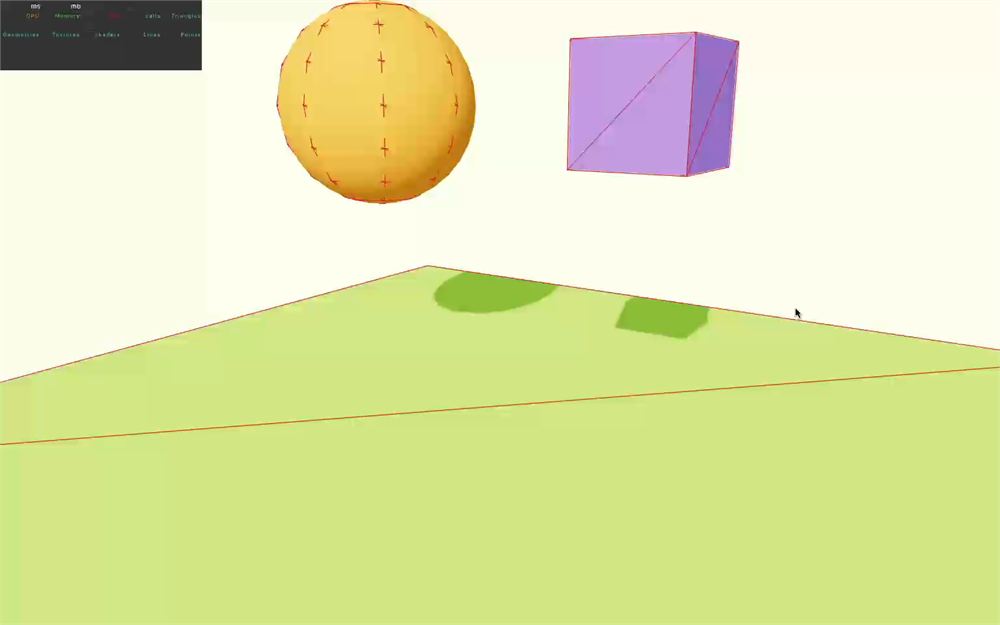
默认情况下,Rapier 会取涉及的物体的两个 restitution 的平均值。可以更改这条规则,但必须在 Collider 内部进行,而不是在 RigidBody 上。
这意味着你需要通过 <RigidBody> 上的引用访问自动生成的碰撞体,或者手动创建 Collider。
你还必须从 Rapier 导入 CoefficientCombineRule,并选择该对象中提供的规则之一。
我们这里不涵盖这些内容。
摩擦力
摩擦力的工作方式与弹性类似,让我们决定表面之间相互摩擦的程度。如果摩擦力高,物体会很快停下;如果摩擦力低,物体会滑动。
我们可以用 friction 属性控制它,默认值是 0.7。
首先,把立方体和地板 <RigidBody> 的 restitution 值改回 0。否则我们就无法看到摩擦力发挥它应有的作用:
<RigidBody
    ref={ cube }
    position={ [ 1.5, 2, 0 ] }
    gravityScale={ 1 }
    restitution={ 0 }
>
    {/* ... */}
</RigidBody>

<RigidBody type="fixed" restitution={ 0 }>
    {/* ... */}
</RigidBody>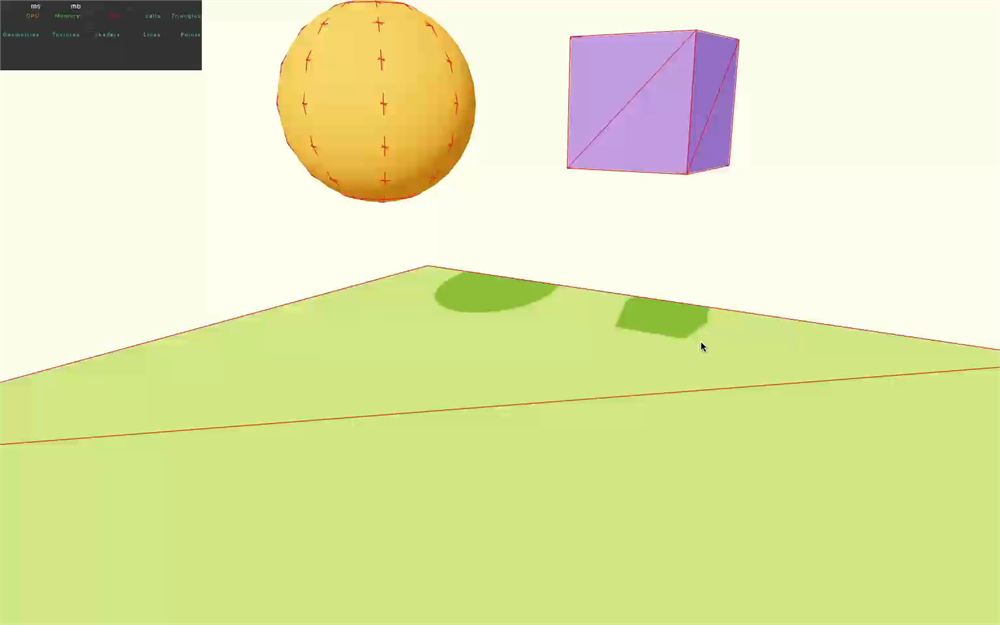
现在给这两个 <RigidBody> 都添加一个 friction 属性,并把它们的值设为 0:
<RigidBody
    ref={ cube }
    position={ [ 1.5, 2, 0 ] }
    gravityScale={ 1 }
    restitution={ 0 }
    friction={ 0 }
>
    {/* ... */}
</RigidBody>

<RigidBody
    type="fixed"
    restitution={ 0 }
    friction={ 0 }
>
    {/* ... */}
</RigidBody>
点击立方体,给它一点跳跃和摆动:
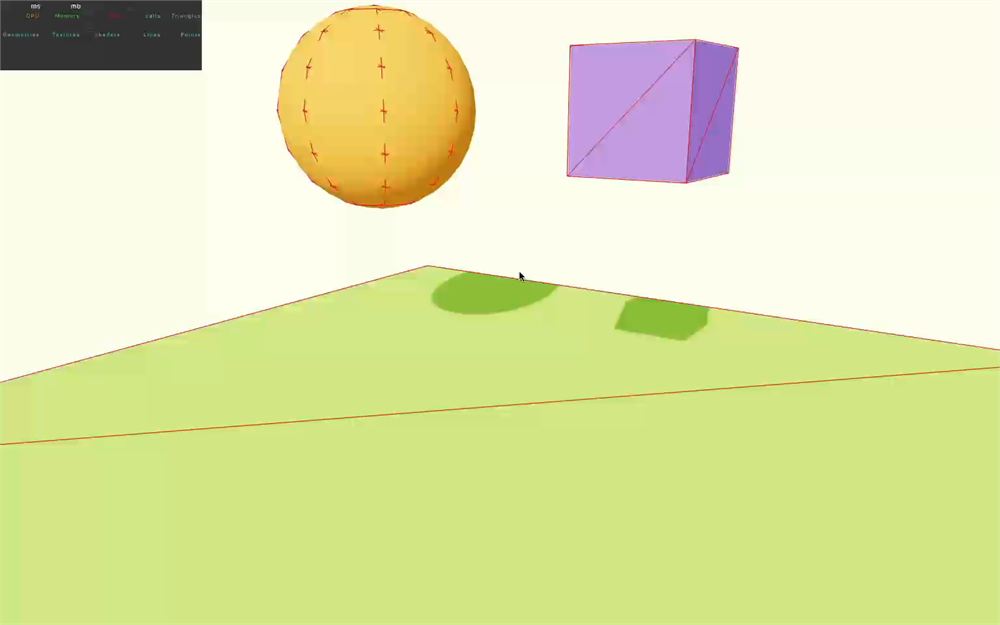
同样,默认情况下,Rapier 会取涉及的两个 friction 的平均值。可以更改这条规则,但必须在 Collider 内部进行,而不是像弹性那样在 RigidBody 内。你还必须从 Rapier 导入 CoefficientCombineRule,我们这里不涵盖这些内容。
把两个 <RigidBody> 的 friction 值改回 0.7:
<RigidBody
    ref={ cube }
    position={ [ 1.5, 2, 0 ] }
    gravityScale={ 1 }
    restitution={ 0 }
    friction={ 0.7 }
>
    {/* ... */}
</RigidBody>

<RigidBody
    type="fixed"
    restitution={ 0 }
    friction={ 0.7 }
>
    {/* ... */}
</RigidBody>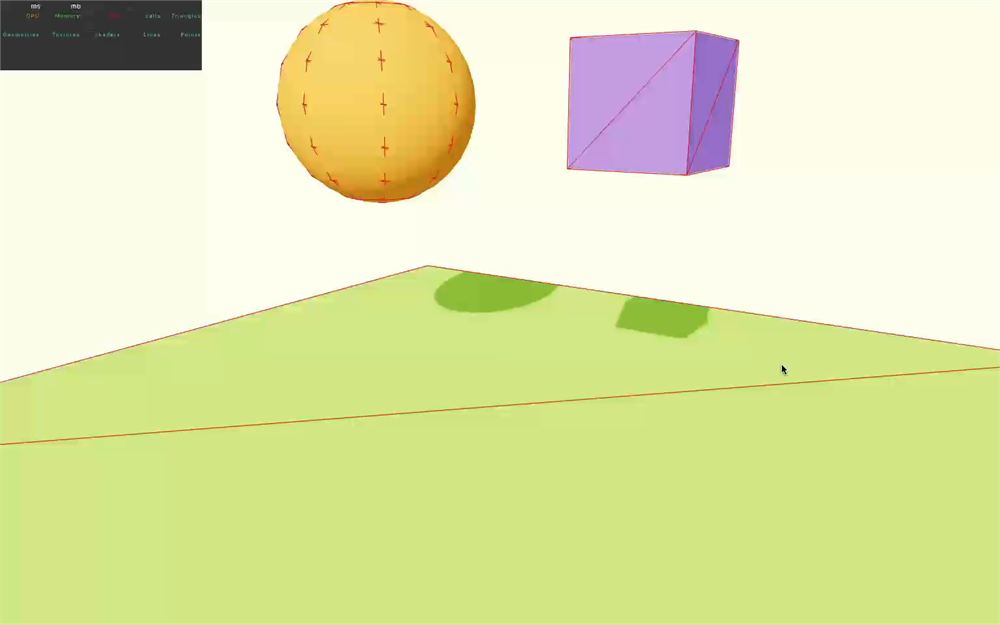
质量
RigidBody 的质量会自动计算为组成该 RigidBody 的各个 Colliders 质量之和。而 Colliders 的质量会根据它们的形状和体积自动计算。
换句话说,大的对象会自动拥有更大的质量。
尽管如此,我们还是来学习如何访问和修改它。
注意,与普遍看法相反,质量不会改变物体下落的速度。如果我们加入像空气摩擦这样的概念,那么它的速度可能会受到影响,但这里不是这种情况。
然而,质量会影响涉及的力。如果两个物体碰撞,其中一个质量巨大而另一个质量很小,那么巨大的质量会把小的质量推开。
设置质量
默认质量似乎就很合适,但如果我们想更改它呢?你可不想让一个金属盒子的反应跟纸板盒子一样,对吧?
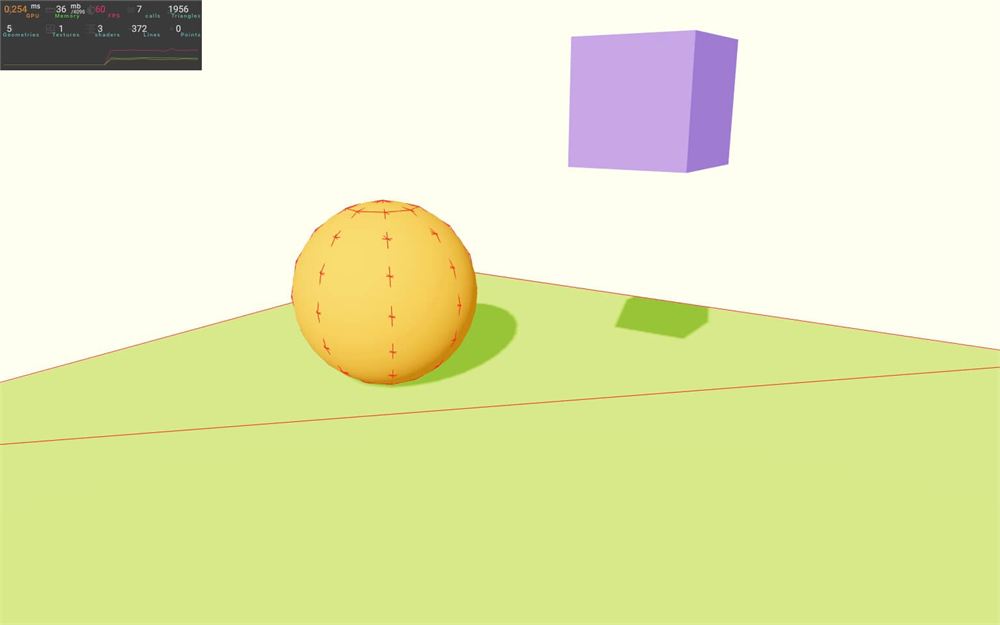
如前所述,RigidBody 的质量是作为组成它的 Colliders 质量之和计算的。这意味着我们需要自己创建 Collider 才能更改它们的质量。
首先,确保你仍然导入了 CuboidCollider。
然后,把立方体 <RigidBody> 的 colliders 属性设为 false:
<RigidBody
    ref={ cube }
    position={ [ 1.5, 2, 0 ] }
    gravityScale={ 1 }
    restitution={ 0 }
    friction={ 0.7 }
    colliders={ false }
>
    {/* ... */}
</RigidBody>
并在 <RigidBody> 中创建并添加一个 <CuboidCollider>:
<RigidBody
    ref={ cube }
    position={ [ 1.5, 2, 0 ] }
    gravityScale={ 1 }
    restitution={ 0 }
    friction={ 0.7 }
    colliders={ false }
>
    {/* ... */}
    <CuboidCollider args={ [ 0.5, 0.5, 0.5 ] } />
</RigidBody>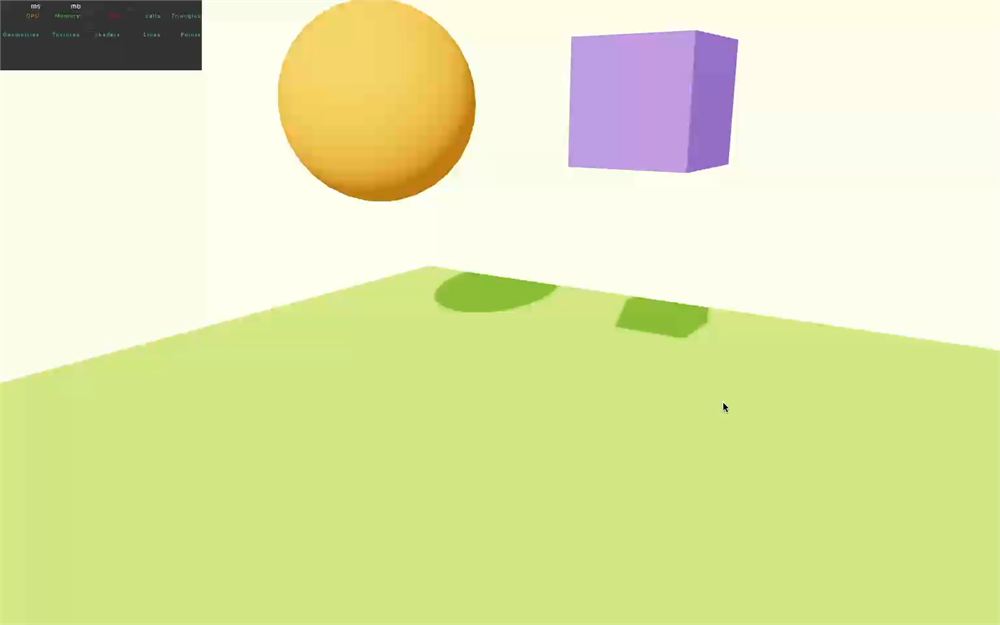
我们又回到了相同的结果,碰撞体的质量再次被自动计算了。如果你点击立方体,它应该和之前跳得一样高。
但现在,我们可以控制它的质量。
把 <CuboidCollider> 上的 mass 属性设为 0.5:
<CuboidCollider mass={ 0.5 } args={ [ 0.5, 0.5, 0.5 ] } />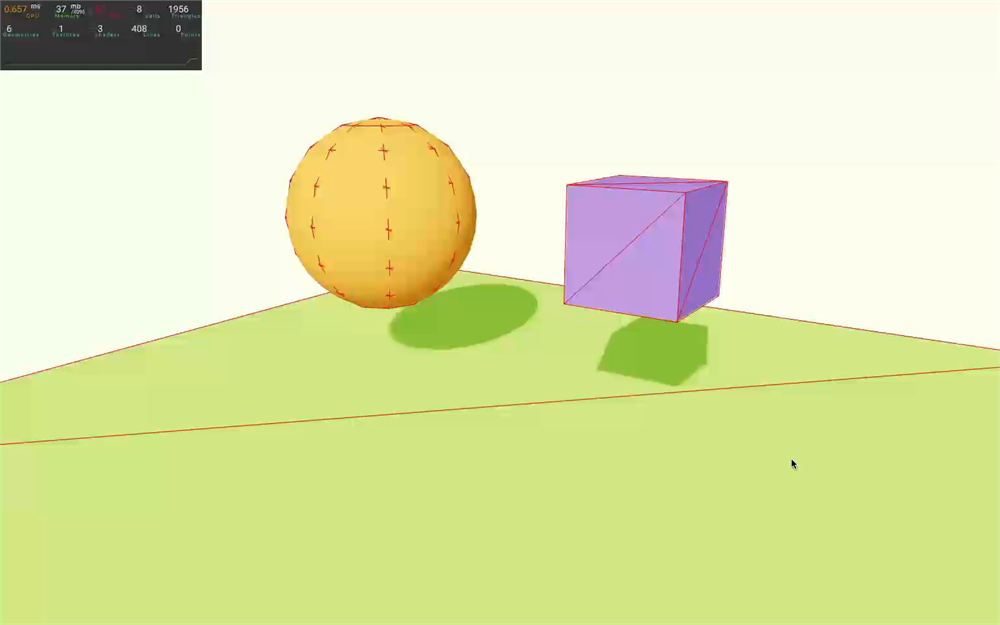
如果你点击它,你会注意到它跳得高了一倍。
显然,你也可以用更大的 mass 达到相反的结果:
<CuboidCollider mass={ 2 } args={ [ 0.5, 0.5, 0.5 ] } />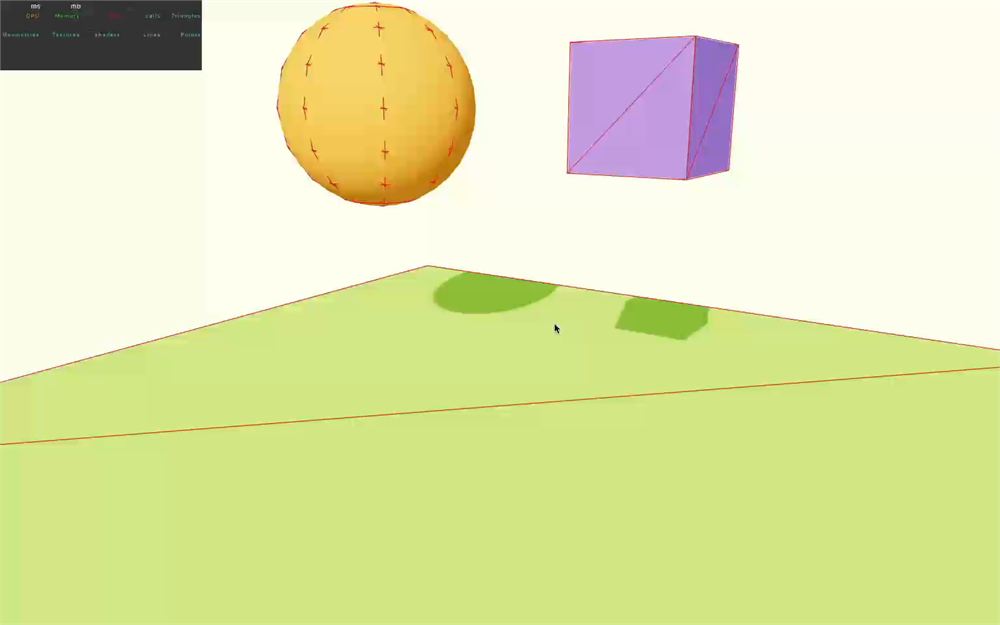
如果你点击它,立方体不会跳很高。
访问质量
由于质量更大了,我们点击时施加的力就不够强了。
为了学习,我们想根据对象的质量来调整冲量的强度,使它能跳到相同的高度,无论质量如何。
换句话说,质量越大,冲量越强。
为此,我们要获取质量,并把它用在 applyImpulse 上。
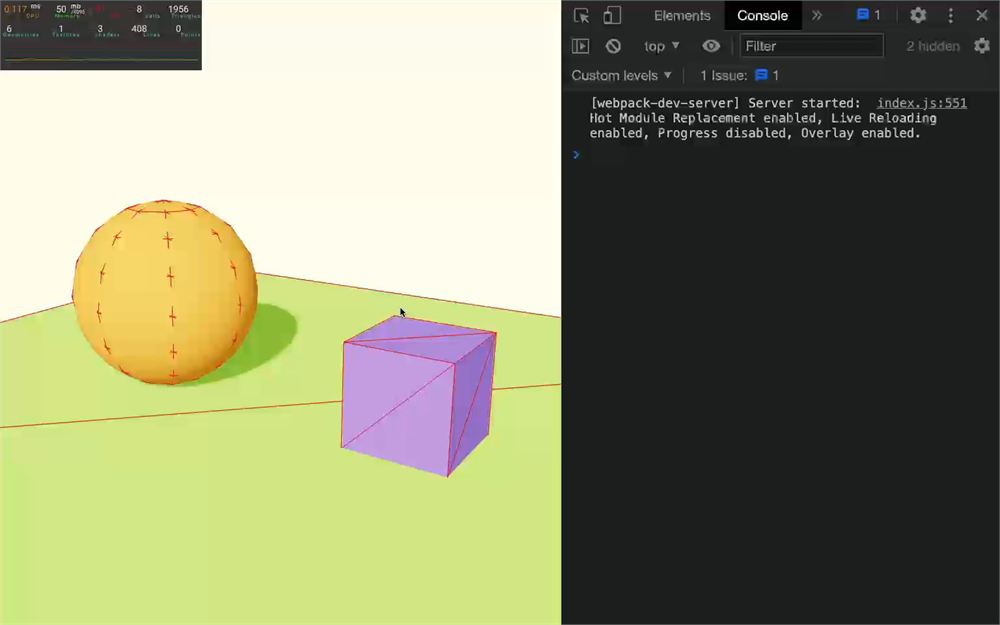
在 cubeJump 函数中,用 mass 方法获取质量:
const cubeJump = () =>
{
    const mass = cube.current.mass()
    console.log(mass)

    // ...
}
现在你可以乘上我们发送给 applyImpulse 方法的向量值:
const cubeJump = () =>
{
    const mass = cube.current.mass()

    cube.current.applyImpulse({ x: 0, y: 5 * mass, z: 0 })
    // ...
}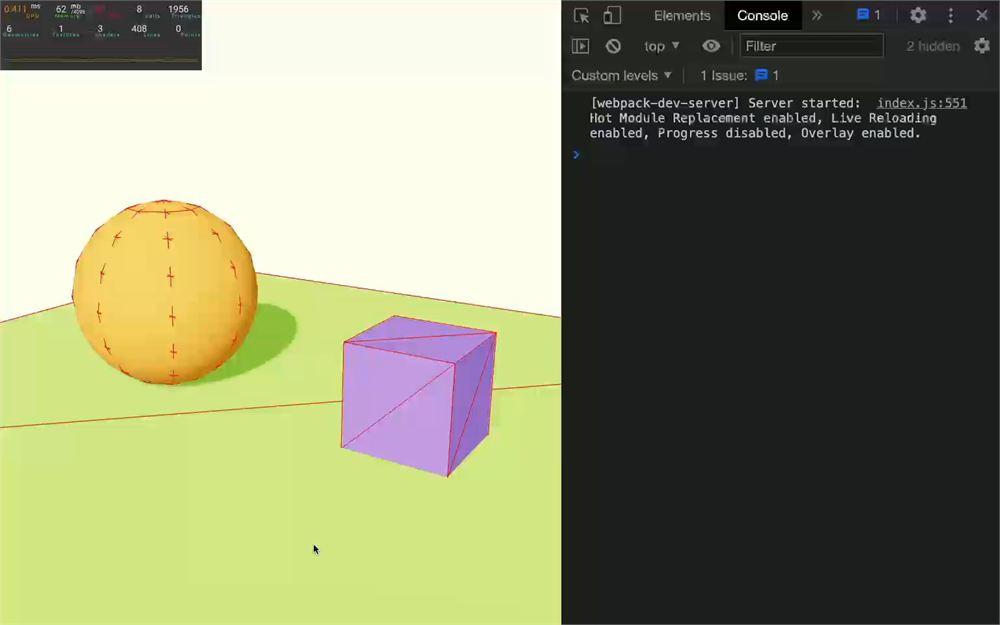
冲量的强度现在与质量成正比。
位置与旋转
正如我们之前看到的,我们可以通过 <RigidBody> 的 position 和 rotation 属性更改它的位置和旋转。
但要小心,对于动态和固定对象(我们已涵盖的两种类型的对象),你不应该在运行时更改这些值。它们的用途只是在让 Rapier 更新对象之前设置初始位置和旋转。
在运行时更改这些值相当于传送对象,可能会导致奇怪的行为和 bug。
如果你想移动一个对象,你必须对它施加力。例如,你可以像我们之前看到的那样使用 addForce 或 applyImpulse。
如果你真的需要直接更新对象的位置和旋转,有两个选项:
- 如果你只需要移动它一次,你可以用适当的方法来做,但你必须重置当前施加在它上面的速度,还要确保不要把它移动到另一个
RigidBody内部。我们这里不会看到这部分,因为我们会把它留到下一课。 - 如果你需要随时间移动它,比如旋转木马或移动的障碍物,你可以使用我们马上要了解的
kinematic类型。
运动学类型
我们已经涵盖过 fixed 对象(地板)和 dynamic 对象(球和立方体)。
fixed 对象不会移动,而 dynamic 对象会移动,会受到重力、力等的影响。
正如我们之前指出的,更改对象的位置和旋转是个坏主意,它相当于传送对象。
但如果我们真的想要一个可以移动和旋转的对象呢?它可能是玩家,也可能是一个旋转木马,而我们不想使用不可预测的力。我们想让它们以精确的速度移动和旋转。
而这正是 kinematicPosition 和 kinematicVelocity 类型的用途。
kinematicPosition 和 kinematicVelocity 的区别在于我们如何更新它们。
对于 kinematicPosition,我们提供下一个位置,它会相应地更新对象的速度。
对于 kinematicVelocity,我们直接提供速度。
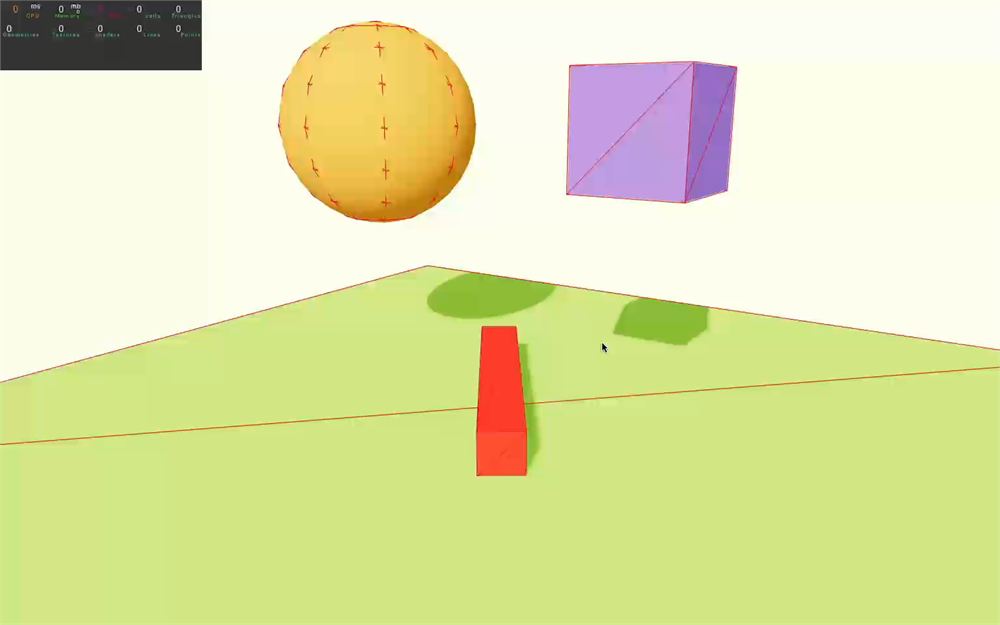
让我们在地板上创建一个绕圈旋转、同时自身也在旋转的长红色盒子。我们将称它为 twister,并使用 kinematicPosition 类型:
<Physics debug gravity={ [ 0, - 9.81, 0 ] }>

    {/* ... */}

    <RigidBody
        position={ [ 0, - 0.8, 0 ] }
        friction={ 0 }
        type="kinematicPosition"
    >
        <mesh castShadow scale={ [ 0.4, 0.4, 3 ] }>
            <boxGeometry />
            <meshStandardMaterial color="red" />
        </mesh>
    </RigidBody>

</Physics>
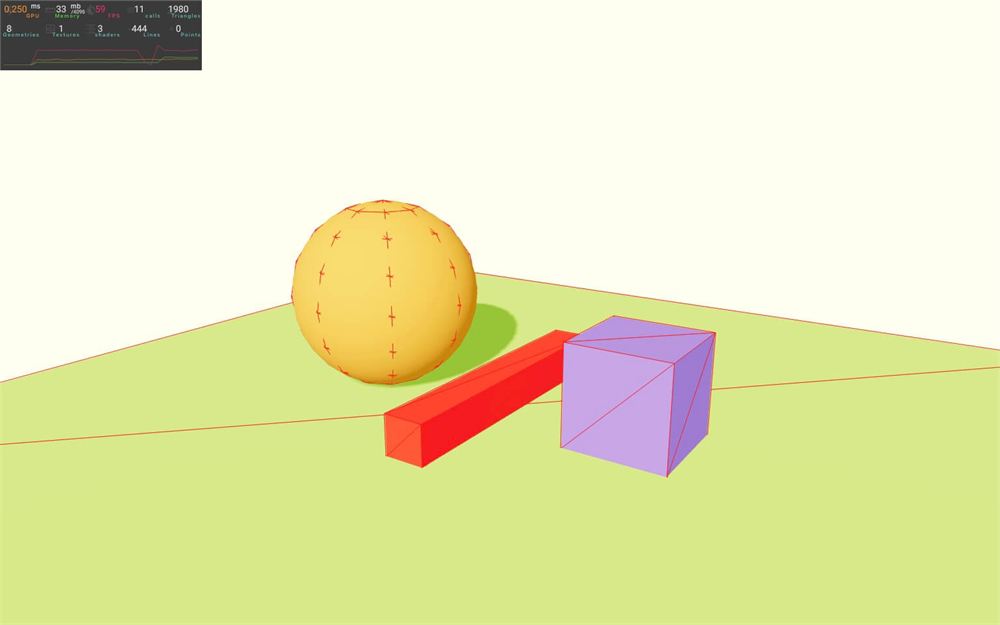
由于我们要自己更改它的位置,我们需要一个对它的引用。
确保你仍然导入了 useRef,然后创建一个 twister 引用:
export default function Experience()
{
    const twister = useRef()

    // ...
}
使用 ref 属性将它关联到 <RigidBody>:
<RigidBody
    ref={ twister }
    position={ [ 0, - 0.8, 0 ] }
    friction={ 0 }
    type="kinematicPosition"
>
    {/* ... */}
</RigidBody>
由于我们要在每一帧更改它的位置和旋转,我们将使用 useFrame。
从 @react-three/fiber 导入 useFrame:
import { useFrame } from '@react-three/fiber'并在 Experience 中使用它:
export default function Experience()
{
    // ...

    useFrame(() =>
    {

    })

    // ...
}
运动学对象有两个重要的函数:
setNextKinematicTranslation用于移动对象。setNextKinematicRotation用于旋转对象。
我们先让它旋转起来。
一如既往,我们希望动画基于时间,这样无论帧率如何,它在每台设备上看起来都一样。
为此,我们需要获取自体验开始以来经过的时间,我们将使用 Clock。
给 useFrame 添加 state 参数:
useFrame((state) =>
{

})
在 state 对象中,我们可以访问 clock 属性,并且可以调用它的 elapsedTime 方法把它保存到一个 time 变量中:
useFrame((state) =>
{
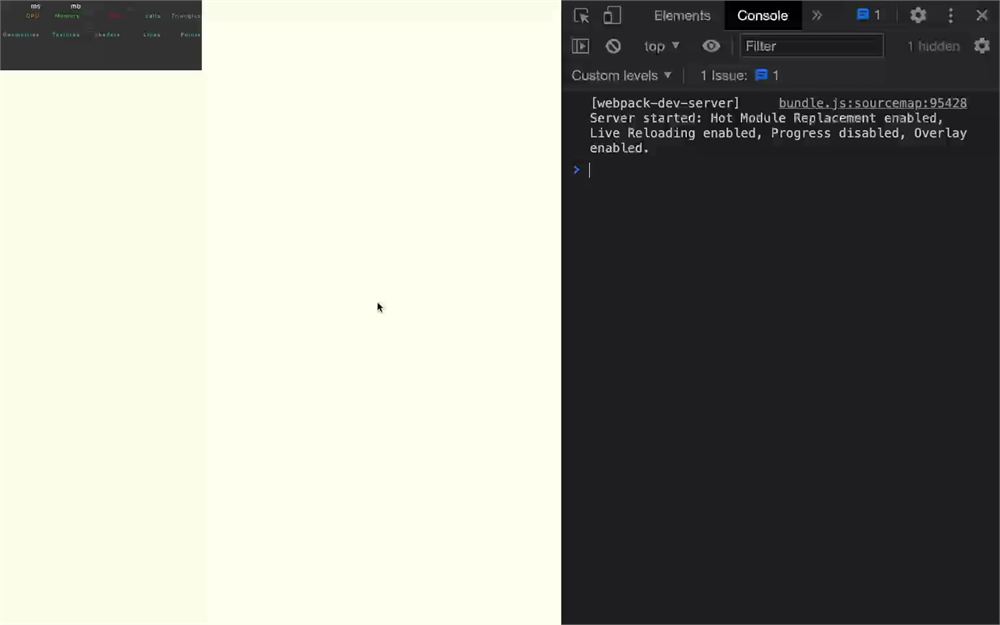
    const time = state.clock.getElapsedTime()
    console.log(time)
})
我们现在想用 time 来旋转这个旋转体。
不幸的是,这里有个小问题。setNextKinematicRotation 期望的是 Quaternion 而不是 Euler。Quaternion 更难表达,我们没法直接写一个出来。
为了解决这个问题,我们将创建一个 Three.js Euler,然后基于这个 Euler 创建一个 Three.js Quaternion;由于大多数数学对象在 Three.js 和 Rapier 之间是相互兼容的,我们将把这个 Quaternion 发送给 setNextKinematicRotation。
从 three 导入 THREE:
import * as THREE from 'three'创建 Euler 版本,并把 time 用在 y 轴上:
useFrame((state) =>
{
    const time = state.clock.getElapsedTime()

    const eulerRotation = new THREE.Euler(0, time, 0)
})
然后创建一个 Quaternion,并用 setFromEuler 方法应用这个 Euler:
useFrame((state) =>
{
    const time = state.clock.getElapsedTime()

    const eulerRotation = new THREE.Euler(0, time, 0)
    const quaternionRotation = new THREE.Quaternion()
    quaternionRotation.setFromEuler(eulerRotation)
})
最后,在 twister 引用上调用 setNextKinematicRotation 方法,并把 quaternionRotation 发送给它:
useFrame((state) =>
{
    const time = state.clock.getElapsedTime()

    const eulerRotation = new THREE.Euler(0, time, 0)
    const quaternionRotation = new THREE.Quaternion()
    quaternionRotation.setFromEuler(eulerRotation)
    twister.current.setNextKinematicRotation(quaternionRotation)
})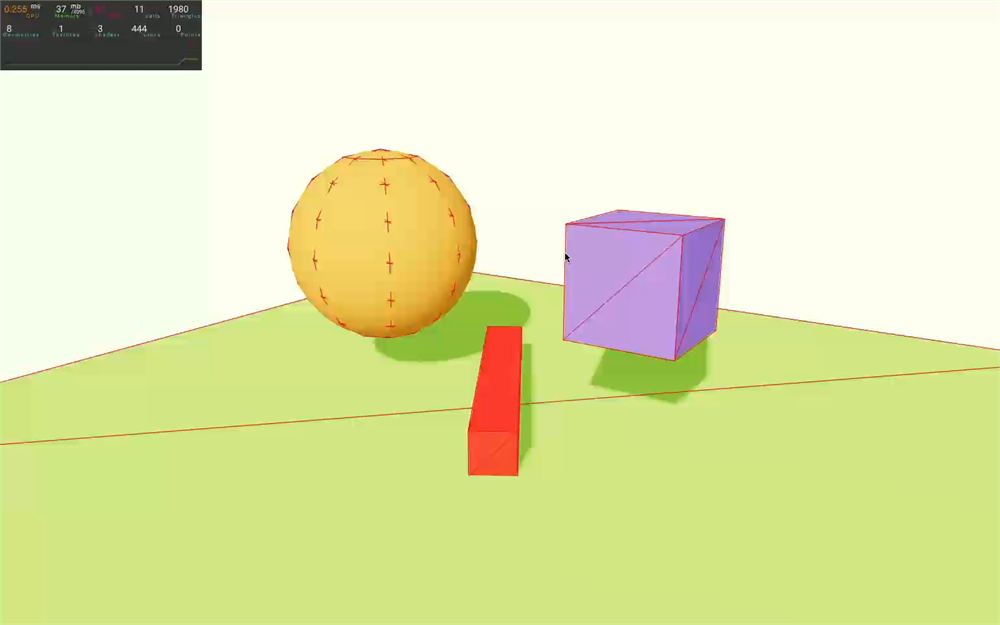
在 Euler 中把 time 乘以 3 让它转得更快:
useFrame((state) =>
{
    const time = state.clock.getElapsedTime()

    const eulerRotation = new THREE.Euler(0, time * 3, 0)

    // ...
})
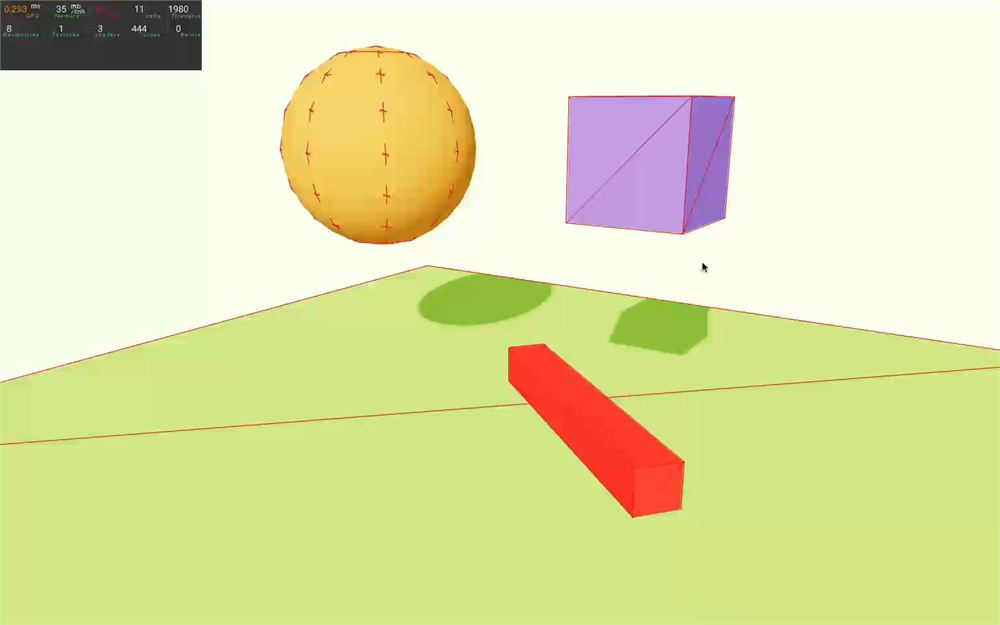
现在来处理位置。
我们希望 twister 沿着地板表面走一条圆形路径,这是经典的三角函数。
由于这不是本课的主题,我们只会简要处理数学部分,不过还是应该一步一步来。
首先,我们需要一个角度,我们将使用 time 乘以 0.5,这样它就不会移动得太快:
useFrame((state) =>
{
    // ...

    const angle = time * 0.5
})
然后我们需要用 Math.cos() 和 Math.sin() 在该 angle 上计算 x 和 z 位置:
useFrame((state) =>
{
    // ...

    const angle = time * 0.5
    const x = Math.cos(angle)
    const z = Math.sin(angle)
})
现在我们可以把这些值用在 setNextKinematicTranslation 方法中。注意我们不想更改 y 值,这就是为什么我们必须把初始值放回去(- 0.8):
useFrame((state) =>
{
    // ...

    const angle = time * 0.5
    const x = Math.cos(angle)
    const z = Math.sin(angle)
    twister.current.setNextKinematicTranslation({ x: x, y: - 0.8, z: z })
})
它起作用了,但 twister 沿着一个很小的圆形路径移动。我们可以通过同时乘以 sin 和 cos 来改变它:
useFrame((state) =>
{
    // ...

    const angle = time * 0.5
    const x = Math.cos(angle) * 2
    const z = Math.sin(angle) * 2
    twister.current.setNextKinematicTranslation({ x: x, y: - 0.8, z: z })
})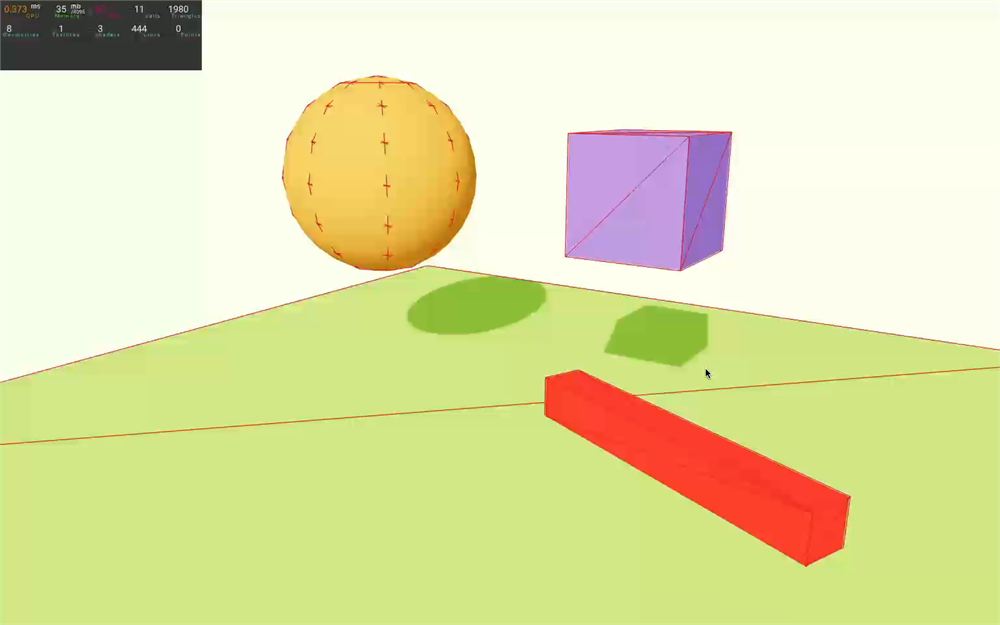
于是我们的 twister 四处旋转,像猫一样把物体推到边缘。
事件
我们可以通过在 <RigidBody> 上直接添加属性来监听事件。
有 4 种不同的事件:
onCollisionEnter:当RigidBody撞到某物时。onCollisionExit:当RigidBody与它刚刚撞到的对象分离时。onSleep:当RigidBody开始休眠时。onWake:当RigidBody停止休眠时。
onCollisionEnter
在 Experience 中,创建一个 collisionEnter 函数:
export default function Experience()
{
    // ...

    const collisionEnter = () =>
    {
        console.log('collision!')
    }
}
然后把它添加到立方体对应的 <RigidBody> 的 onCollisionEnter 属性上:
<RigidBody
    ref={ cube }
    position={ [ 1.5, 2, 0 ] }
    gravityScale={ 1 }
    restitution={ 0 }
    friction={ 0.7 }
    colliders={ false }
    onCollisionEnter={ collisionEnter }
>
    {/* ... */}
</RigidBody>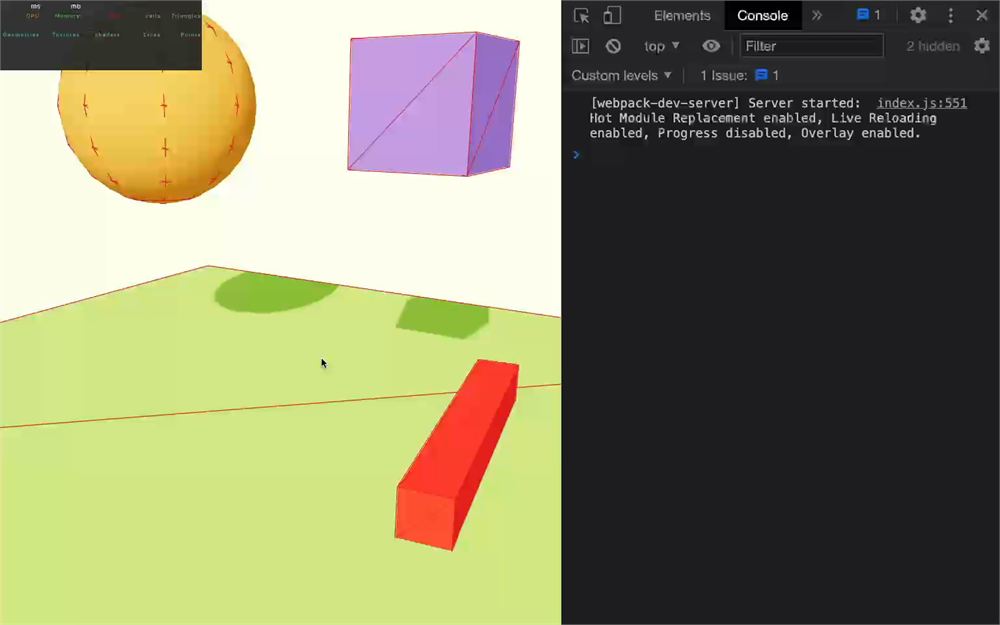
让我们在立方体撞到某物时播放一个声音。
首先,我们需要实例化音频。为此,我们将使用 useState,以便在组件被重新渲染的情况下音频只实例化一次。
从 react 导入 useState:
import { useState, useRef } from 'react'一个 hit.mp3 音频文件位于 /public/ 文件夹中。
在 Experience 开头调用 useState,并传入一个会返回 Audio 类实例的函数:
export default function Experience()
{
    const [ hitSound ] = useState(() => new Audio('./hit.mp3'))

    // ...
}
现在我们有一个准备好播放的声音了。
在 collisionEnter 函数中,把 currentTime 设为 0,把它的 volume 设为一个随机值,并播放它。这样一来,如果两次撞击触发得太快,声音会从头重新播放,而音量的随机性会让它听起来更真实:
const collisionEnter = () =>
{
    hitSound.currentTime = 0
    hitSound.volume = Math.random()
    hitSound.play()
}
别忘了,如果用户没有先与页面交互,大多数浏览器会阻止你播放声音:
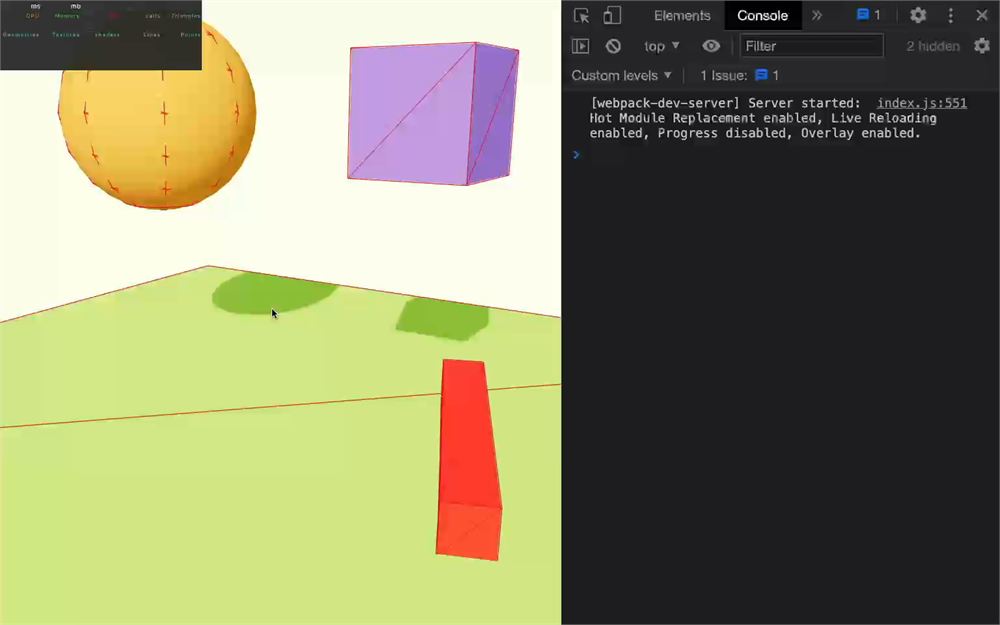
如果你想听到声音,请在立方体撞到某物之前点击页面上的任意位置:
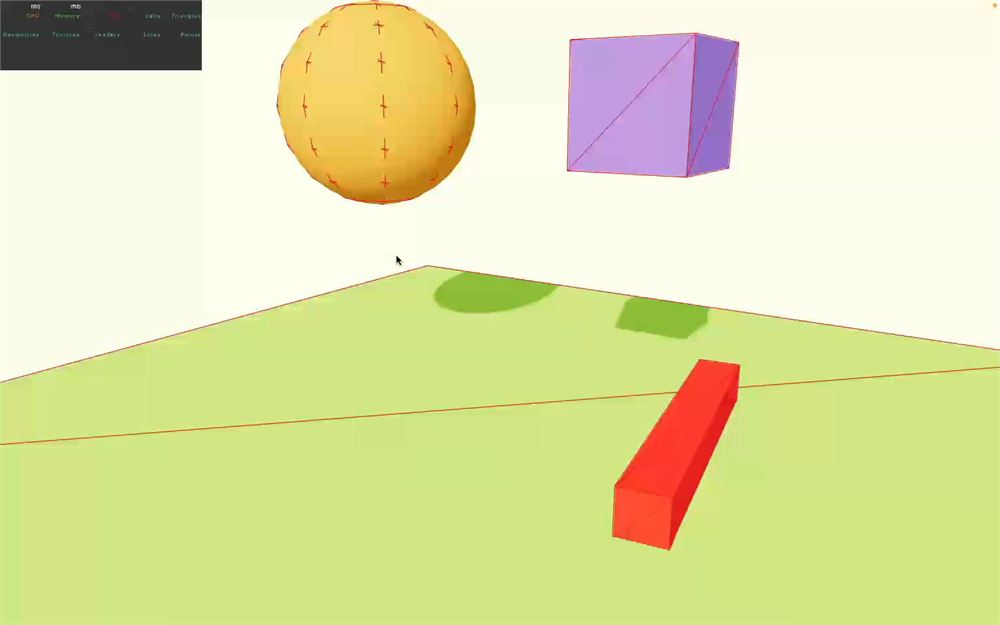
重新插入 console log 来代替声音播放:
const collisionEnter = () =>
{
    console.log('collision!')
    // hitSound.currentTime = 0
    // hitSound.volume = Math.random()
    // hitSound.play()
}
onCollisionExit
如果对象与它刚刚碰撞的另一个对象分离,就会触发 onCollisionExit。
我们可以不创建函数,而是直接发送一个:
<RigidBody
    ref={ cube }
    position={ [ 1.5, 2, 0 ] }
    gravityScale={ 1 }
    restitution={ 0 }
    friction={ 0.7 }
    colliders={ false }
    onCollisionEnter={ collisionEnter }
    onCollisionExit={ () => { console.log('exit') } }
>
    {/* ... */}
</RigidBody>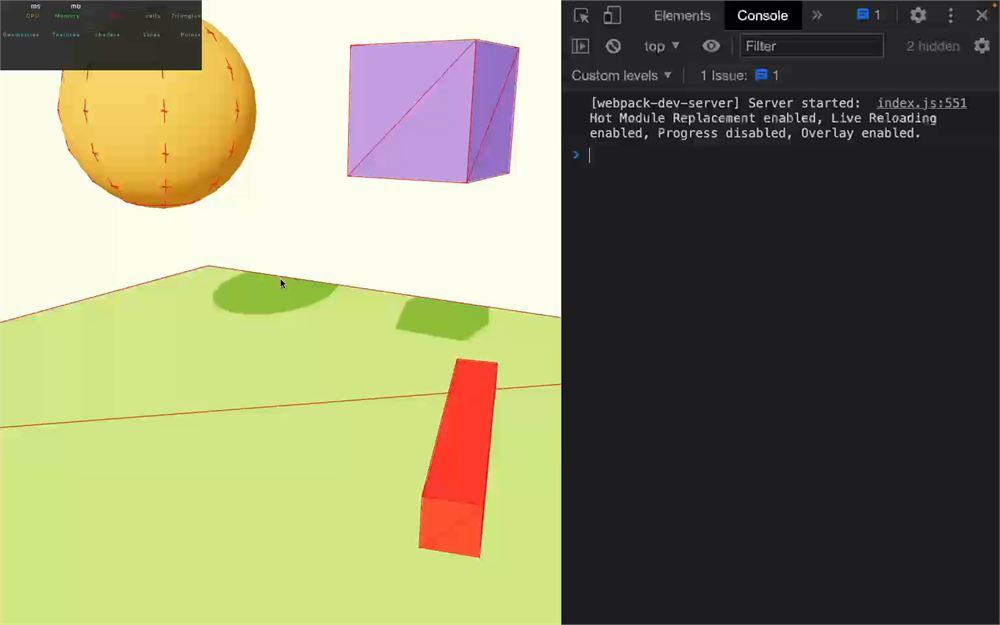
onSleep 和 onWake
当一个对象停止移动一段时间后,Rapier 会认为它处于休眠状态,并且不会更新它,除非它与别的东西碰撞,或者我们在它上面调用了像 applyImpulse 这样的函数。
这能提升性能,因为 Rapier 不必去测试那些不移动的对象。
我们可以通过 onSleep 和 onWake 来得知这种休眠状态的变化:
<RigidBody
    ref={ cube }
    position={ [ 1.5, 2, 0 ] }
    gravityScale={ 1 }
    restitution={ 0 }
    friction={ 0.7 }
    colliders={ false }
    onCollisionEnter={ collisionEnter }
    onCollisionExit={ () => { console.log('exit') } }
    onSleep={ () => { console.log('sleep') } }
    onWake={ () => { console.log('wake') } }
>
		{/* ... */}
</RigidBody>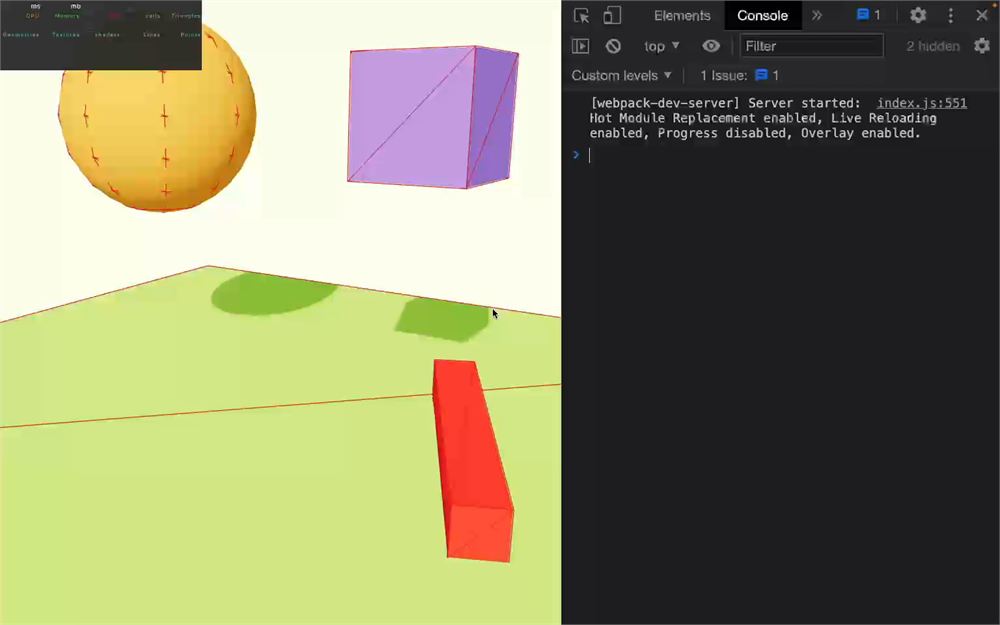
让我们移除所有事件,以免刷爆控制台,尤其是因为我们稍后会做一个会产生大量碰撞的压力测试:
<RigidBody
    ref={ cube }
    position={ [ 1.5, 2, 0 ] }
    gravityScale={ 1 }
    restitution={ 0 }
    friction={ 0.7 }
    colliders={ false }
    // onCollisionEnter={ collisionEnter }
    // onCollisionExit={ () => { console.log('exit') } }
    // onSleep={ () => { console.log('sleep') } }
    // onWake={ () => { console.log('wake') } }
>
    {/* ... */}
</RigidBody>
来自模型
让我们看看 React Three Rapier 如何处理模型。
加载模型
首先,我们需要给场景添加一个模型。往常的汉堡模型在 /public/ 文件夹中可用。
现在正是你自己尝试加载汉堡并把它添加到场景中的好时机。然后你可以试着给它添加物理,看看它是如何被处理的。
让我们一起做。
从 @react-three/drei 导入 useGLTF:
import { useGLTF, OrbitControls } from '@react-three/drei'用它来加载模型:
export default function Experience()
{
    // ...

    const hamburger = useGLTF('./hamburger.glb')

    // ...
}
并用一个 <primitive> 把它添加到 <Physics> 内部:
<Physics debug gravity={ [ 0, - 9.08, 0 ] }>

    {/* ... */}

    <primitive object={ hamburger.scene } />

</Physics>
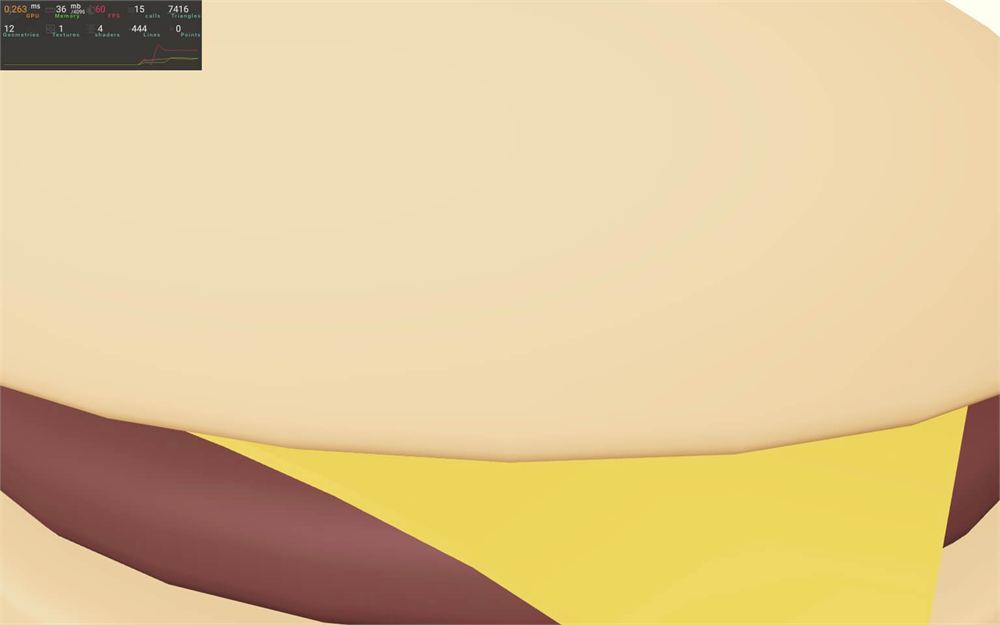
让我们把它缩小一点:
<primitive object={ hamburger.scene } scale={ 0.25 } />
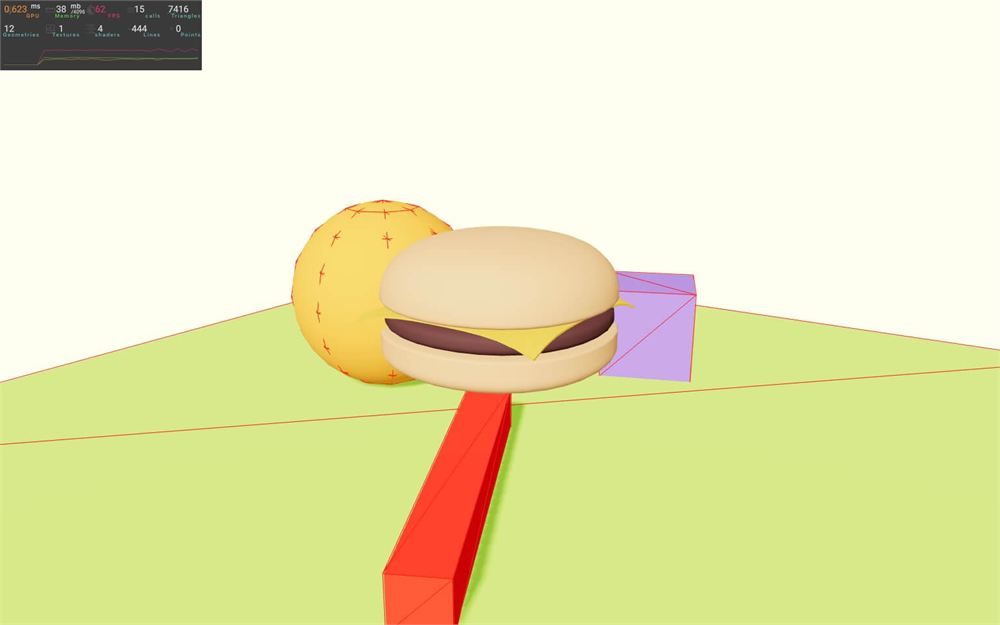
添加物理
现在,见证真相的时刻,在它周围添加一个 <RigidBody>:
<RigidBody>
    <primitive object={ hamburger.scene } scale={ 0.25 } />
</RigidBody>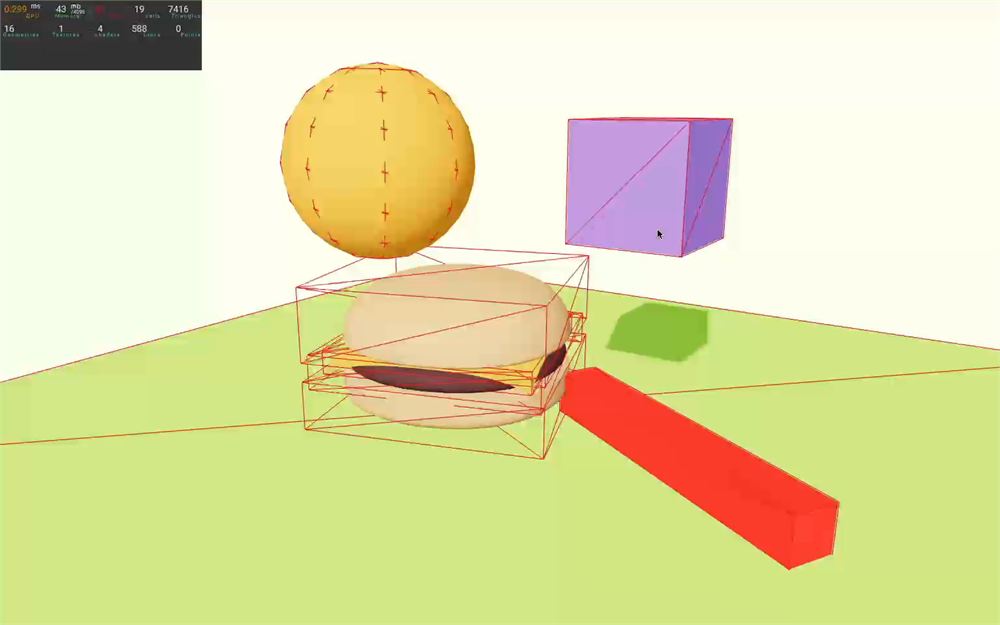
它成功了!
为了更清楚地看到它,让我们用 position 属性把它移到立方体和球体的上方:
<RigidBody position={ [ 0, 4, 0 ] }>
    <primitive object={ hamburger.scene } scale={ 0.25 } />
</RigidBody>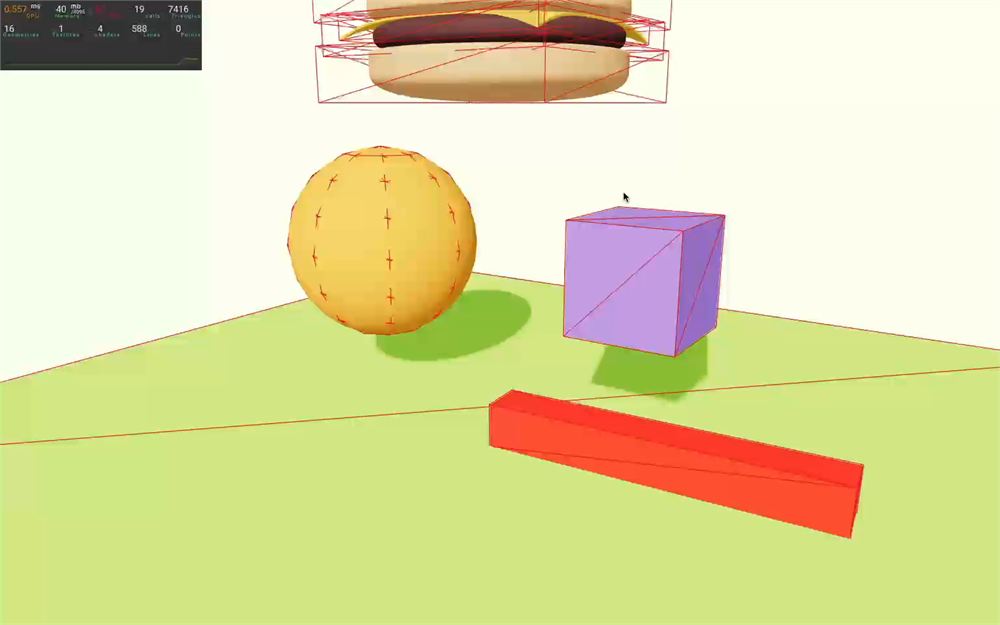
从调试版本可以看到,汉堡的每个部分都创建了一个 CuboidCollider,而且效果相当不错。
使用自定义碰撞体
但这些长方体并不真正匹配我们汉堡的形状。
第一个解决方案可以是创建我们自己的自定义碰撞体。
把 <RigidBody> 的 colliders 属性设为 false:
<RigidBody colliders={ false } position={ [ 0, 4, 0 ] }>
    {/* ... */}
</RigidBody>
一个圆柱体应该会很合适。
从 @react-three/rapier 导入 CylinderCollider:
import { CylinderCollider, BallCollider, CuboidCollider, RigidBody, Physics } from '@react-three/rapier'把 <CylinderCollider> 添加到 <RigidBody> 中:
<RigidBody colliders={ false } position={ [ 0, 4, 0 ] }>
    <primitive object={ hamburger.scene } scale={ 0.25 } />
    <CylinderCollider args={ [ 0.5, 1.25 ] } />
</RigidBody>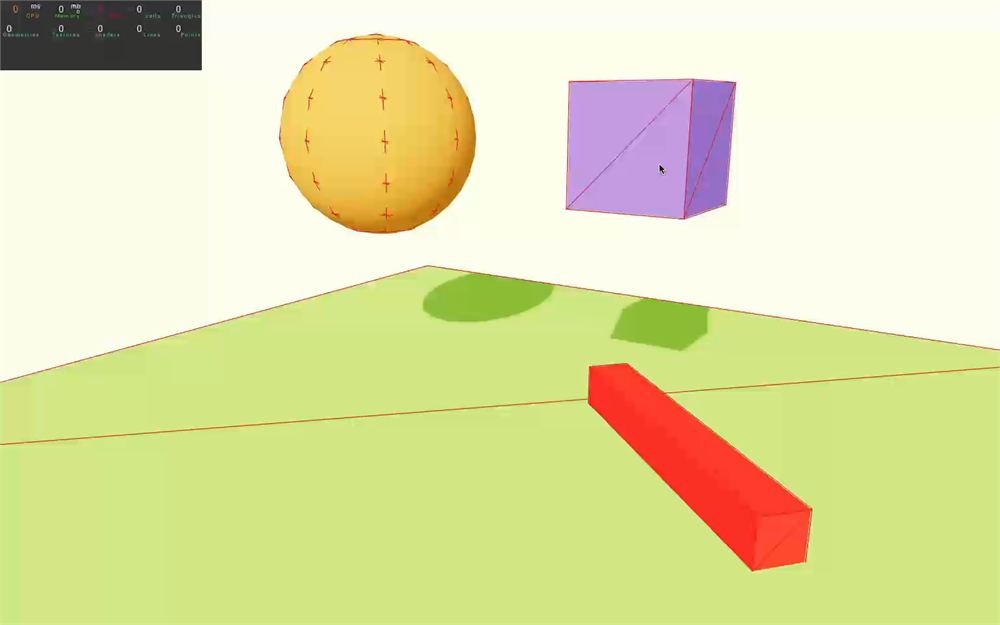
在视频中,圆柱体的调试版本与碰撞体的实际形状不匹配,但对你来说应该没问题。
使用凸包
在大多数情况下,你不需要碰撞体与几何体完美匹配,大多数用户不会注意到差别(尤其是已经习惯了的玩家)。
尽管如此,让我们把真实感再推进一步。
注释掉 <CylinderCollid>,并把 colliders 属性设为 hull:
<RigidBody colliders="hull" position={ [ 0, 4, 0 ] }>
    <primitive object={ hamburger.scene } scale={ 0.25 } />
    {/* <CylinderCollider args={ [ 0.5, 1.25 ] } /> */}
</RigidBody>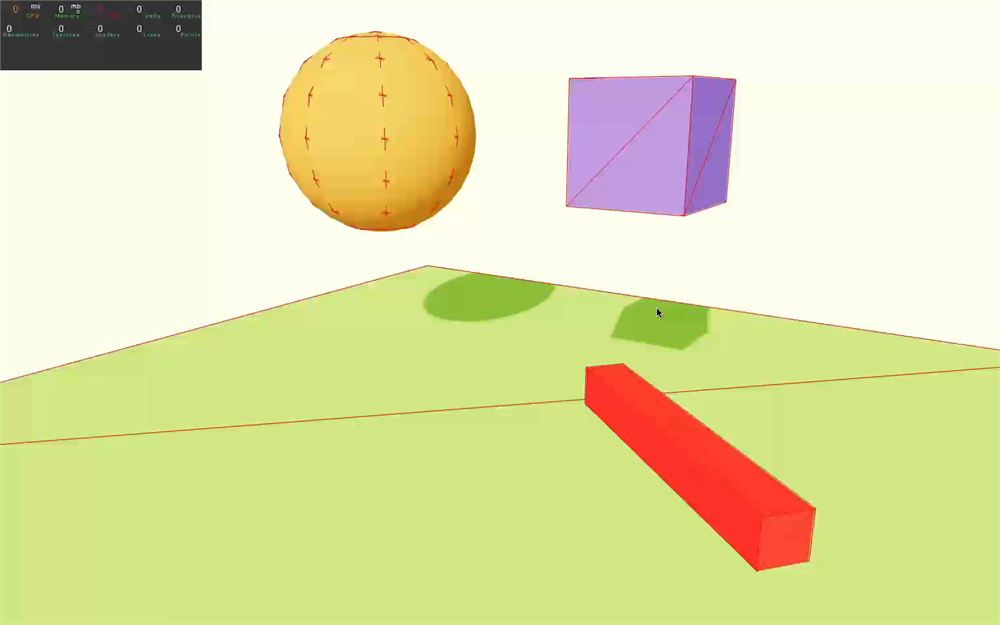
React Three Rapier 会为汉堡的每个部分创建一个凸包。不幸的是,在我录制时,重心似乎不太对。这个 bug 大概很快就会修复,你可能根本不会看到它。
使用 trimesh
最后,我们可以把 colliders 属性设为 trimesh:
<RigidBody colliders="trimesh" position={ [ 0, 4, 0 ] }>
    <primitive object={ hamburger.scene } scale={ 0.25 } />
    {/* <CylinderCollider args={ [ 0.5, 1.25 ] } /> */}
</RigidBody>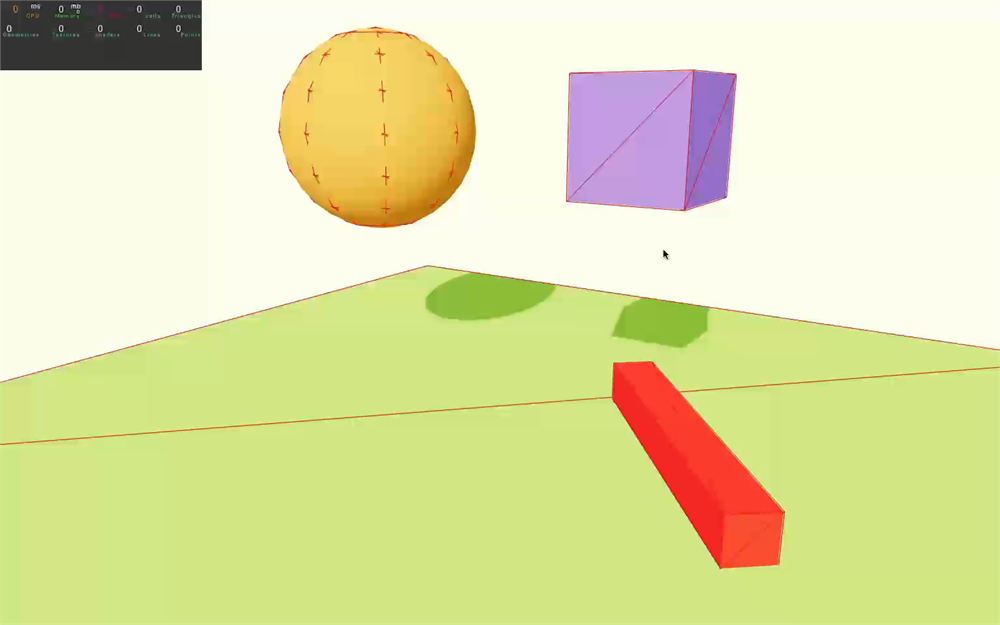
别忘了,在动态对象上使用 trimesh 可能会导致碰撞 bug,但形状会与几何体完美匹配。
让我们把碰撞体设为 false,并重新插入 <CylinderCollider>:
<RigidBody colliders={ false } position={ [ 0, 4, 0 ] }>
    <primitive object={ hamburger.scene } scale={ 0.25 } />
    <CylinderCollider args={ [ 0.5, 1.25 ] } />
</RigidBody>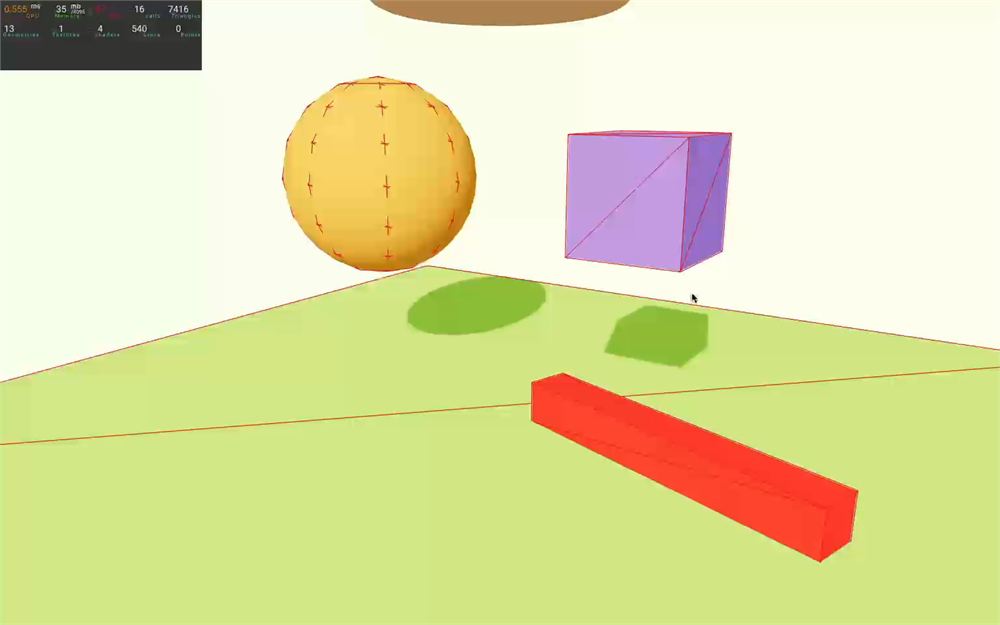
压力测试
这些课程我们差不多快讲完了。但为了高调收尾,让我们看看 Rapier 如何处理从天而降的数百个立方体。
添加墙壁
为了让它更刺激,我们要防止物体掉出场景。
为此,我们要添加不可见的墙壁。
到目前为止,我们一直在 <RigidBody> 内部添加网格或模型,但这并不是必须的。我们的墙壁将存在于 Rapier 中,但不存在于 Three.js 中。
其实你可以试着自己创建这些墙壁。
这是解决方案:
<RigidBody type="fixed">
    <CuboidCollider args={ [ 5, 2, 0.5 ] } position={ [ 0, 1, 5.5 ] } />
    <CuboidCollider args={ [ 5, 2, 0.5 ] } position={ [ 0, 1, - 5.5 ] } />
    <CuboidCollider args={ [ 0.5, 2, 5 ] } position={ [ 5.5, 1, 0 ] } />
    <CuboidCollider args={ [ 0.5, 2, 5 ] } position={ [ - 5.5, 1, 0 ] } />
</RigidBody>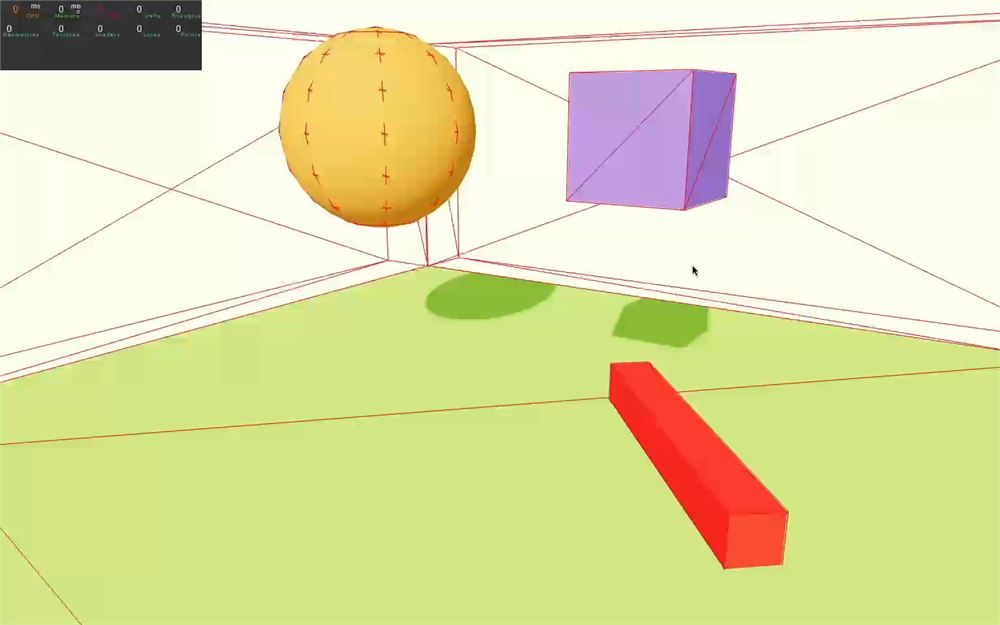
InstancedMesh
由于我们要测试 Rapier 的极限,我们需要确保 Three.js 能够处理数百个立方体。为此,我们将使用 InstancedMesh。
我们在 性能技巧 那一课已经谈过 InstancedMesh,但我们需要学习如何在 React Three Fiber 中实现它。让我们先把 Rapier 放到一边。
首先,我们需要把一个 <instancedMesh> 添加到 JSX 中:
<Physics debug gravity={ [ 0, - 9.08, 0 ] }>

    {/* ... */}

    <instancedMesh>
    </instancedMesh>

</Physics>
我们需要为它提供 3 个参数。geometry、material,以及我们将要显示的实例数量。
由于我们要用 R3F 以声明式方式创建几何体和材质,我们可以把前两个设为 null,但我们必须提供实例数量。
我们将把立方体的数量保存为 cubesCount:
export default function Experience()
{
    // ...

    const cubesCount = 3

    // ...
}
并把它作为 args 的第三个值提供,同时前两个是 null(先不要保存):
<instancedMesh args={ [ null, null, cubesCount ] }>
</instancedMesh>
然后,我们可以像为 <mesh> 那样创建 <geometry> 和 <material>:
<instancedMesh args={ [ null, null, cubesCount ] }>
    <boxGeometry />
    <meshStandardMaterial color="tomato" />
</instancedMesh>
现在,我们需要为每个实例提供一个 Matrix4,我们将通过一个引用来完成。
确保你已经从 react 导入了 useRef:
import { useState, useRef } from 'react'创建一个 cubes(带 s)引用:
export default function Experience()
{
    // ...

    const cubes = useRef()

    // ...
}
并使用 ref 属性把它关联到 <instancedMesh>:
<instancedMesh ref={ cubes } args={ [ null, null, cubesCount ] }>
    {/* ... */}
</instancedMesh>
我们只想在第一次渲染时提供这些矩阵,我们将使用 useEffect 来完成。
从 react 导入 useEffect:
import { useEffect, useState, useRef } from 'react'在 Experience 中调用它,并以空数组作为依赖:
export default function Experience()
{
    // ...

    useEffect(() =>
    {

    }, [])

    // ...
}
让我们做一个从 0 到 cubesCount(不含)的 for 循环:
useEffect(() =>
{
    for(let i = 0; i < cubesCount; i++)
    {

    }
}, [])
首先,我们要创建一个空的 Matrix4,而且我们已经导入了 THREE:
import * as THREE from 'three'我们可以在 for 循环中实例化 Matrix4:
useEffect(() =>
{
    for(let i = 0; i < cubesCount; i++)
    {
        const matrix = new THREE.Matrix4()
    }
}, [])
而要把每个 Matrix4 关联到 InstancedMesh 的实例上,我们可以使用 setMatrixAt 方法:
useEffect(() =>
{
    for(let i = 0; i < cubesCount; i++)
    {
        const matrix = new THREE.Matrix4()
        cubes.current.setMatrixAt(i, matrix)
    }
}, [])
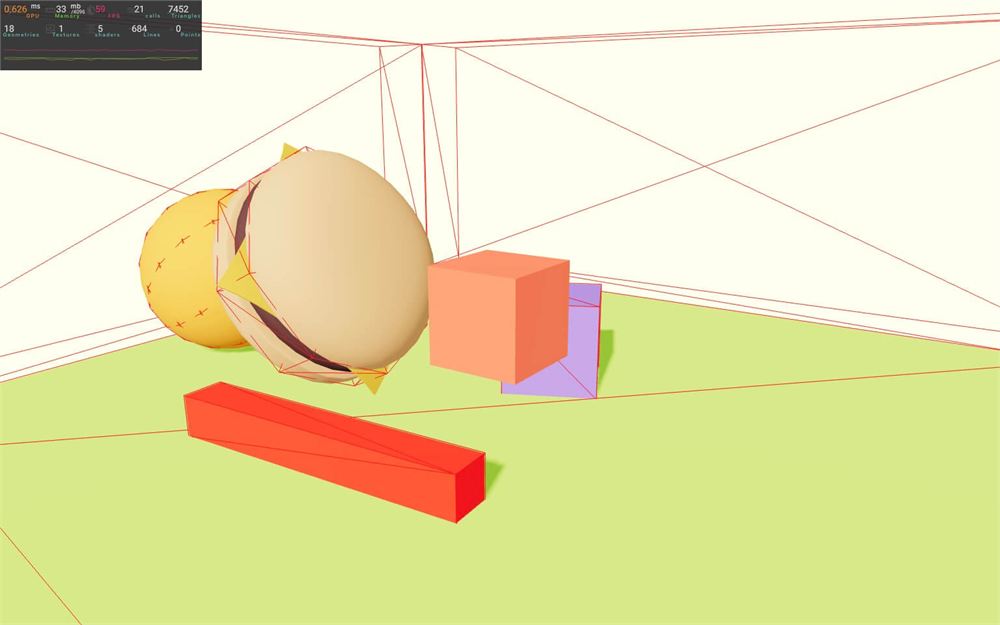
你应该会看到中央有一个番茄色立方体。实际上有 3 个,但因为我们都提供了空的 Matrix4,它们全都定位在中央。
不深入太多细节的话,Matrix4 是位置、旋转和缩放的组合。它们用于根据对象的变换来移动顶点。当我们更改对象的 position、rotation 或 scale 时,Three.js 会在渲染它之前自动计算该对象的 Matrix4。
但在这里,我们需要自己做,而 Matrix4 上有很多不同的方法可以做到这一点。
其中之一是 compose,我们需要向它发送一个位置(Vector3)、一个旋转(Quaternion)和一个缩放(Vector3):
useEffect(() =>
{
    for(let i = 0; i < cubesCount; i++)
    {
        const matrix = new THREE.Matrix4()
        matrix.compose(
            new THREE.Vector3(i * 2, 0, 0),
            new THREE.Quaternion(),
            new THREE.Vector3(1, 1, 1)
        )
        cubes.current.setMatrixAt(i, matrix)
    }
}, [])
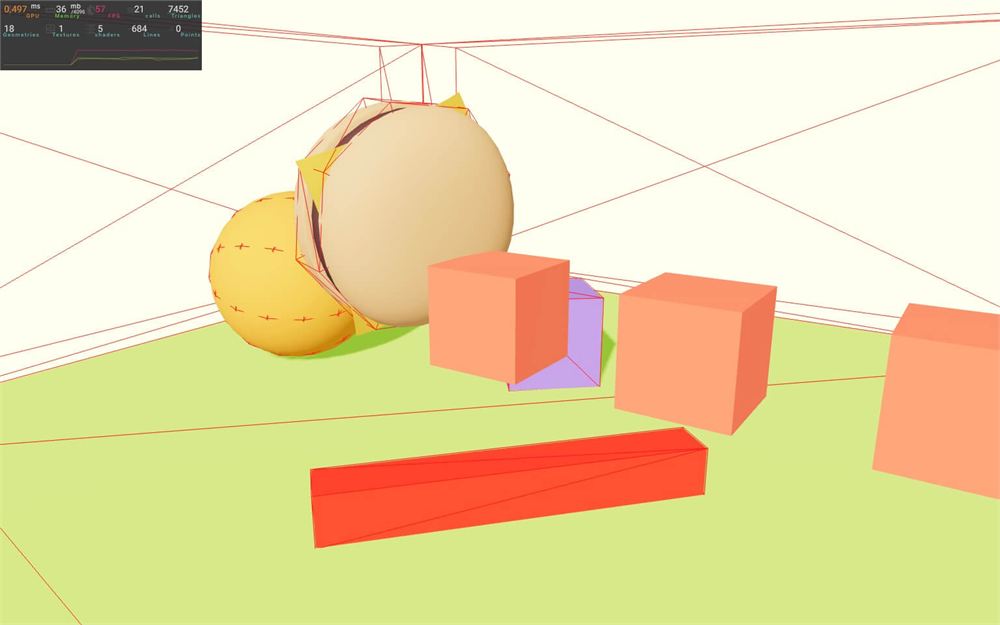
这就是我们在 R3F 中处理 InstancedMesh 的方式。
这些番茄色立方体在一次绘制调用中渲染,我们可以以极小的性能代价创建数百个。
我们还可以用通常的 castShadow 和 receiveShadow 属性激活阴影:
<instancedMesh ref={ cubes } castShadow receiveShadow args={ [ null, null, cubesCount ] }>
    {/* ... */}
</instancedMesh>
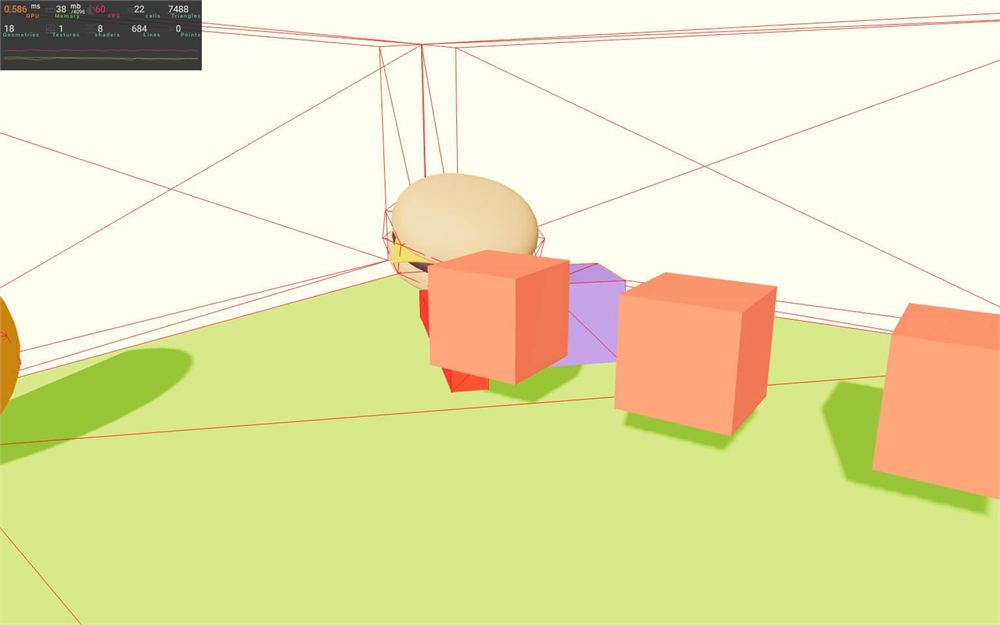
回到物理
既然我们知道如何实现 <instanceMesh>,让我们看看如何把它与 React Three Rapier 一起使用。
首先,我们需要把 <instanceMesh> 包裹在 <InstancedRigidBodies> 中。
从 @react-three/rapier 导入 InstancedRigidBodies:
import { InstancedRigidBodies, CylinderCollider, BallCollider, CuboidCollider, RigidBody, Physics } from '@react-three/rapier'并用 <InstancedRigidBodies> 包裹 <instanceMesh>:
<InstancedRigidBodies>
    <instancedMesh ref={ cubes } castShadow receiveShadow args={ [ null, null, cubesCount ] }>
        <boxGeometry />
        <meshStandardMaterial color="tomato" />
    </instancedMesh>
</InstancedRigidBodies>
<InstancedRigidBodies> 会负责创建矩阵并把它们发送给 <instancedMesh>。因此,我们可以去掉 cubes 引用以及内部带有 for 循环的 useEffect(保留 cubesCount):
const cubesCount = 3
// const cubes = useRef()

// useEffect(() =>
// {
//     for(let i = 0; i < cubesCount; i++)
//     {
//         const matrix = new THREE.Matrix4()
//         matrix.compose(
//             new THREE.Vector3(i * 2, 0, 0),
//             new THREE.Quaternion(),
//             new THREE.Vector3(1, 1, 1)
//         )
//         cubes.current.setMatrixAt(i, matrix)
//     }
// }, [])
并且别忘了从 <instancedMesh> 中移除 ref 属性:
<InstancedRigidBodies>
    <instancedMesh castShadow receiveShadow args={ [ null, null, cubesCount ] }>
        {/* ... */}
    </instancedMesh>
</InstancedRigidBodies>
要在 <InstancedRigidBodies> 上处理这些实例,我们需要创建一个数组,并为每个我们想要的实例放入一个对象。我们只想做一次并在组件重新渲染时保留该值。为此,我们将使用 useMemo:
从 react 导入 useMemo:
import { useMemo, useEffect, useState, useRef } from 'react'调用 useMemo 并 return 一个 instances 数组:
const cubesCount = 3
const instances = useMemo(() =>
{
    const instances = []

    return instances
}, [])
虽然 instances 是空的,但我们已经可以把它作为 instances 属性发送给 <InstancedRigidBodies>:
<InstancedRigidBodies instances={ instances }>现在我们可以通过为每个我们想要的立方体推入一个对象来填充 instances 数组。
每个对象需要 3 个属性:
key:一个随机 key(由 React 使用)position:一个由 3 个值组成的数组,用于 Vector3 位置(x、y和z)rotation:一个由 3 个值组成的数组,用于 Euler 旋转(x、y和z)
const cubesCount = 3
const instances = useMemo(() =>
{
    const instances = []

    for(let i = 0; i < cubesCount; i++)
    {
        instances.push({
            key: 'instance_' + i,
            position: [ i * 2, 0, 0 ],
            rotation: [ 0, 0, 0 ],
        })
    }

    return instances
}, [])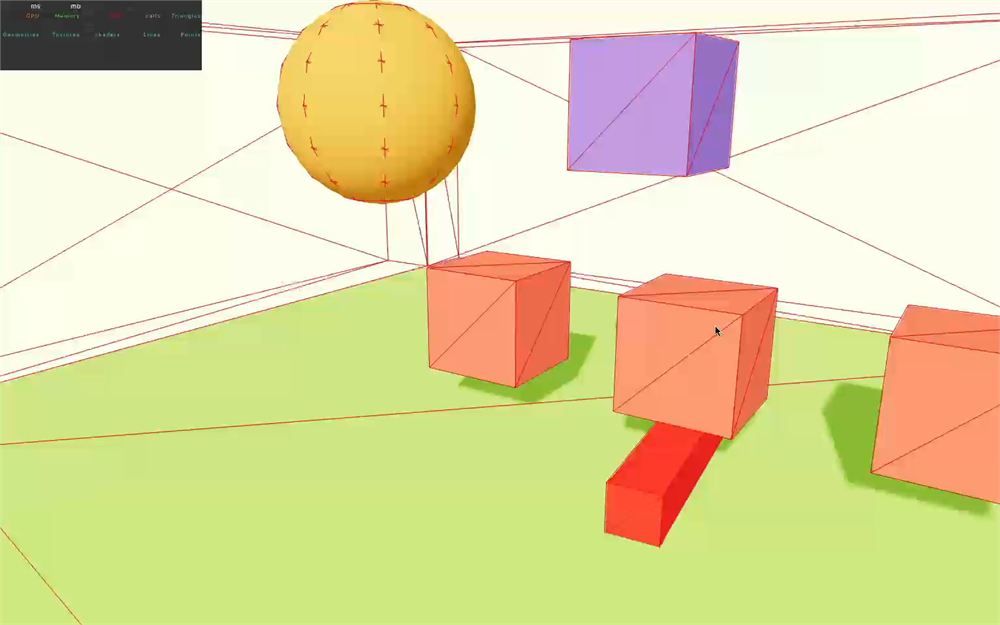
只需要这些。
现在我们可以玩一玩了。添加更多的立方体,并在它们的 position 和 rotation 中加入更多随机性:
const cubesCount = 100
const instances = useMemo(() =>
{
    const instances = []

    for(let i = 0; i < cubesCount; i++)
    {
        instances.push({
            key: 'instance_' + i,
            position:
            [
                (Math.random() - 0.5) * 8,
                6 + i * 0.2,
                (Math.random() - 0.5) * 8
            ],
            rotation: [ Math.random(), Math.random(), Math.random() ],
        })
    }

    return instances
}, [])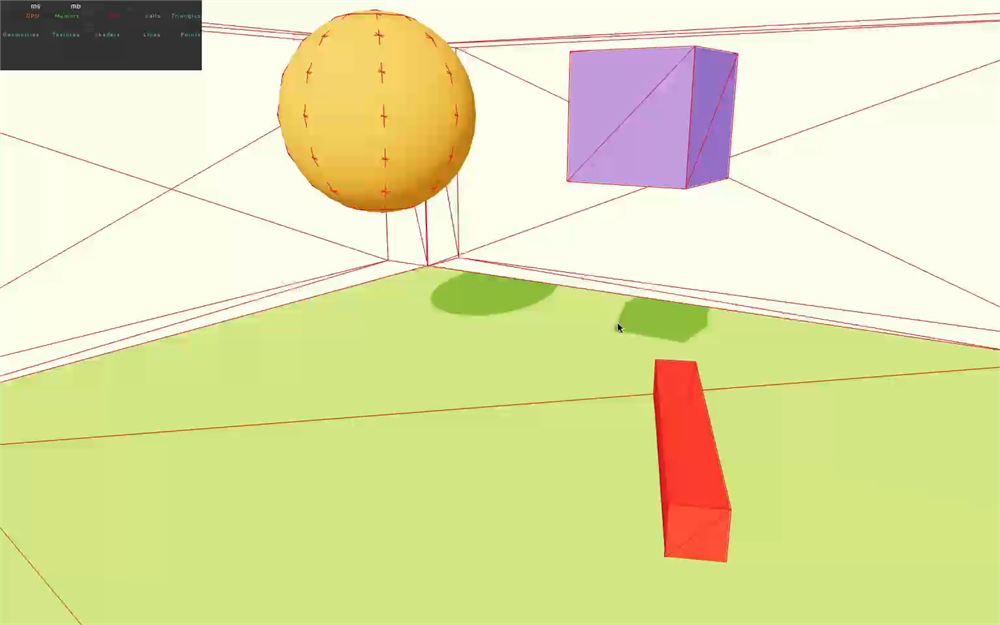
但我们犯了一个错误,你可能会注意到,取决于你的电脑,性能并不那么好。
我们忘了停用 <Physics> 上的 debug 模式,所有那些线框渲染起来很耗时。
把 debug 属性设为 false:
<Physics debug={ false } gravity={ [ 0, - 9.08, 0 ] }>

    {/* ... */}

</Physics>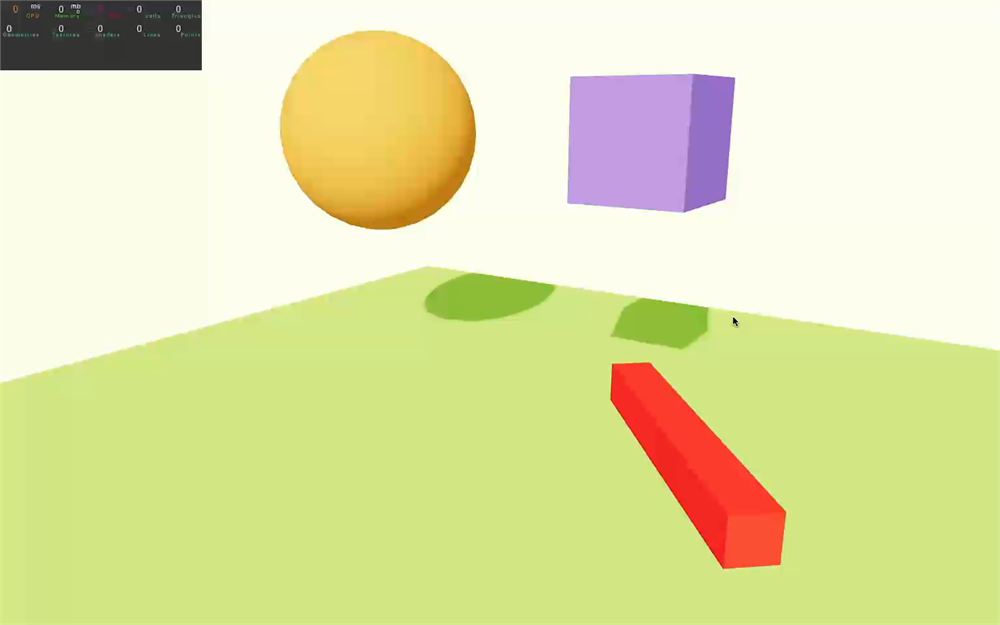
尽情发挥吧,但请不要烧了你的电脑。
更进一步
我们的课程到此就结束了。
我们对 cannon.js 的了解,以及使用 React Three Fiber 和 React Three Rapier 所带来的便利,使我们能够在一课中学习这么多特性。
不过,你还可以走得更远。
首先,我们把所有东西都放在同一个组件里,但别忘了把代码拆分成多个组件,以便更容易理解和维护。
别忘了查看 React Three Fiber 上的示例:https://docs.pmnd.rs/react-three-fiber/getting-started/examples。最相关的那些应该可以在这里找到。
关于 Rapier 还有一个我们完全没有涵盖的完整主题,那就是 Joints(关节)。关节让你能创建连接结构。你可以创建触手、绳索、机械臂等。
别忘了留意 Rapier 和 React Three Rapier 两者的更新。正如我们之前提到的,React Three Rapier 仍在开发中,可能会变得更好。